How to Resolve Sophos Installation and Uninstallation Issue?
Sophos ensures exceptional security services to safeguard your device from viruses and malware. But, ensuring correct installation and configuration on your system is important. If it doesn’t, Sophos installation and uninstallation issues can arise. There can be many reasons for the problem, which include remnants from prior installations, corrupted files, or conflicts with other security software.
A faulty installation or incomplete uninstallation may slow down Sophos’ performance. There can also be instances of crashes or errors. This guide provides the complete process of how to resolve Sophos installation and uninstallation issue. Continue reading to learn in-depth.

Problems When Resolving Sophos Installation/Uninstallation Issue
Users may face these problems when they try to resolve the Sophos installation and uninstallation issue:
-
Conflicting files or processes
-
Firewall or antivirus blocking
-
Insufficient permissions
-
Windows update issues
Troubleshooting Sophos Installation and Uninstallation Issue
Here are the steps that you must follow to troubleshoot the Sophos installation and uninstallation issue:
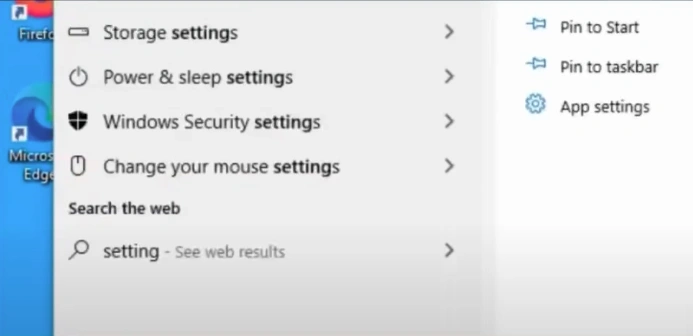
Step 1: First, you need to disable Tamper Protection; to do this, click on the Windows search bar, then search and open Settings.
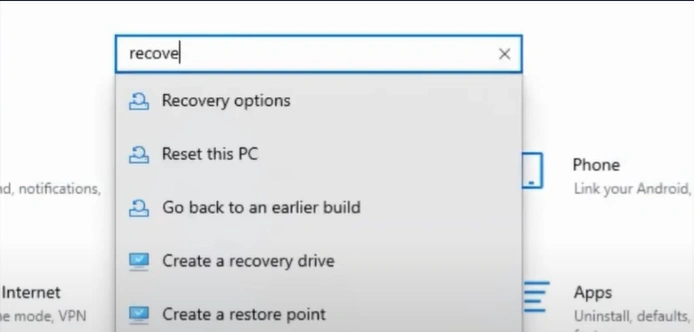
Step 2: Type in Recover in the search bar and open Recovery Options.
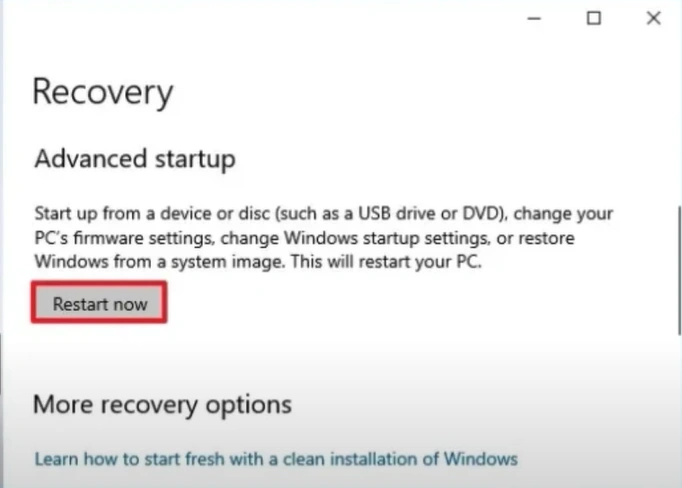
Step 3: Click Restart Now in the Advanced Start-up section.
Step 4: Select Troubleshoot, then click Advanced Options.
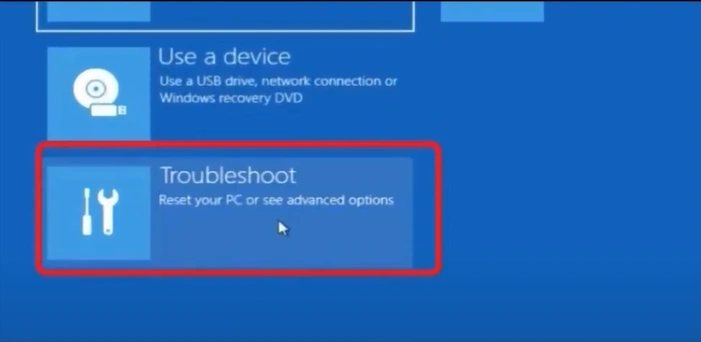
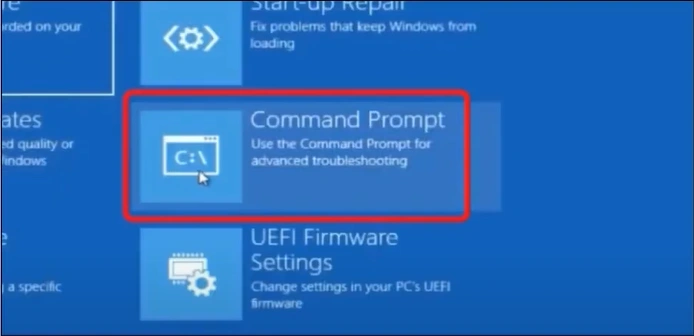
Step 5: Next, select Command Prompt and choose your account to proceed.
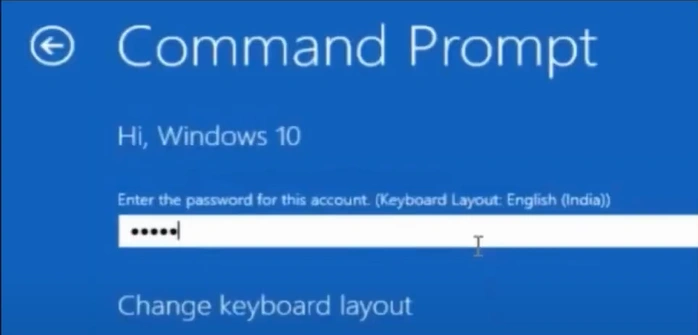
Step 6: Enter the password and click Continue.
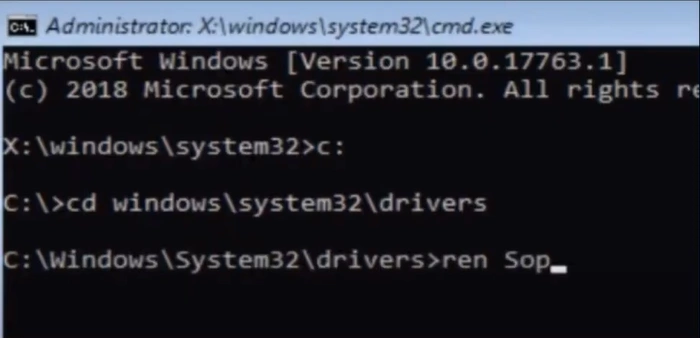
Step 7: In the Administrator window, enter c:\>cd windows\system32\drivers and press Enter.
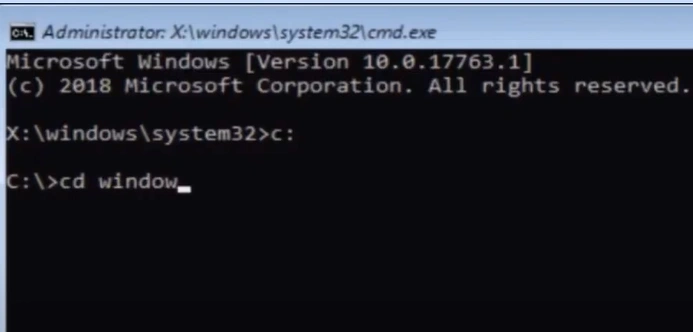
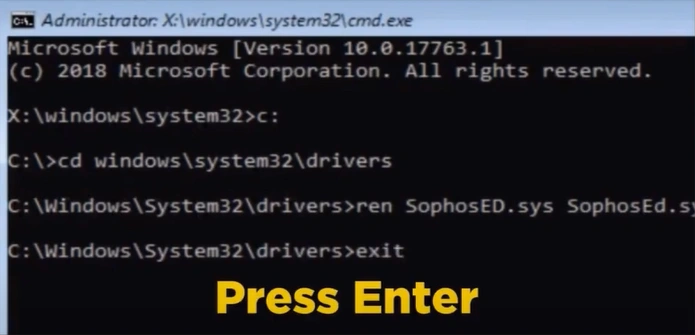
Step 8: Next, enter C: \Windows\system32\driver>ren SophosED.sys SophosED.sys.old and press Enter.
Also Read:- How to Uninstall Sophos on My Computer?
Step 9: Type Exit, press Enter, and select Continue.
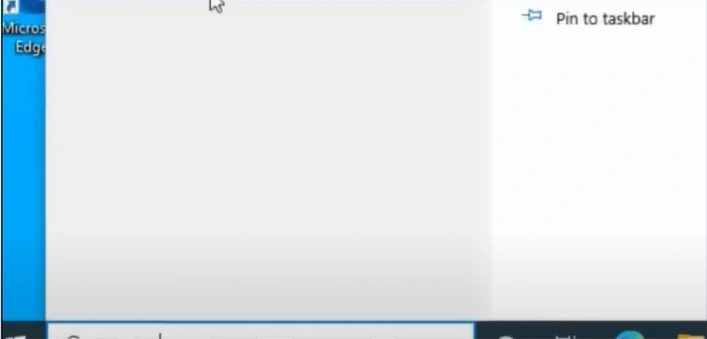
Step 10: Click the Windows search button again, search Services, right-click on it, and select Run as Administrator.
Step 11: In the Services window, right-click on Sophos Antivirus program and select Properties.
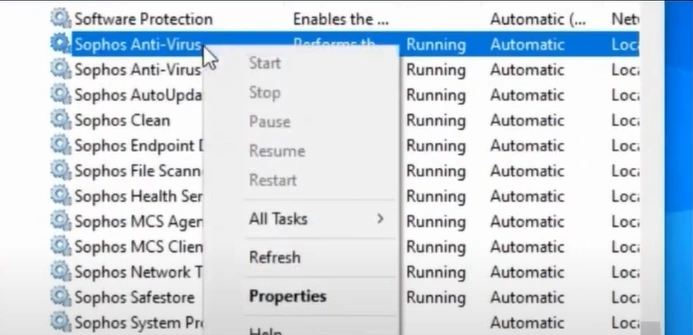
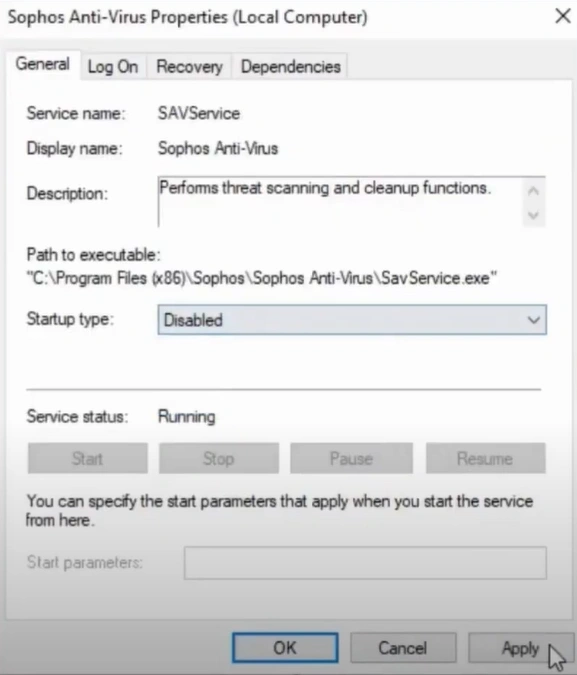
Step 12: Set the Startup Type to Disabled, then click Apply and OK to save the changes.
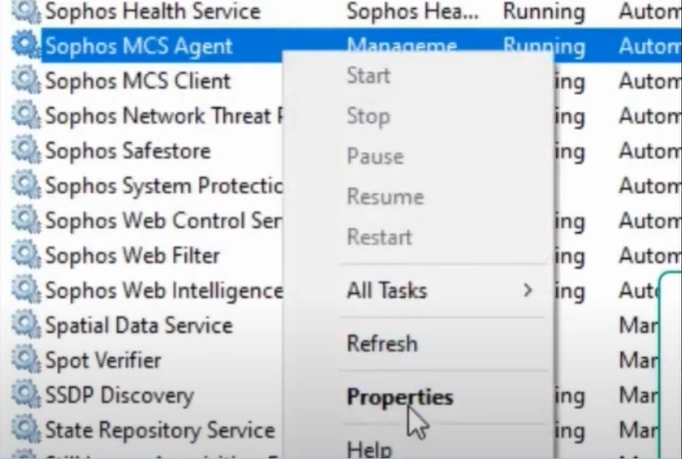
Step 13: Right-click Sophos MCS Agent and select Properties.
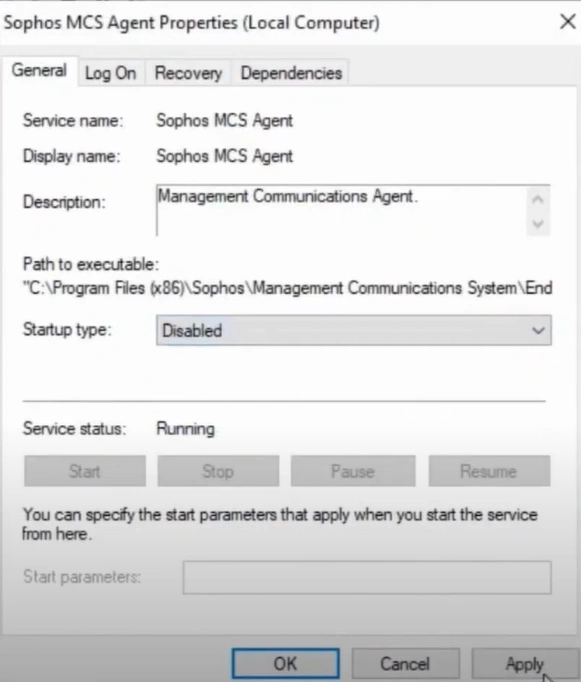
Step 14: Set the Startup Type to Disabled, then click Apply and OK to save the changes.
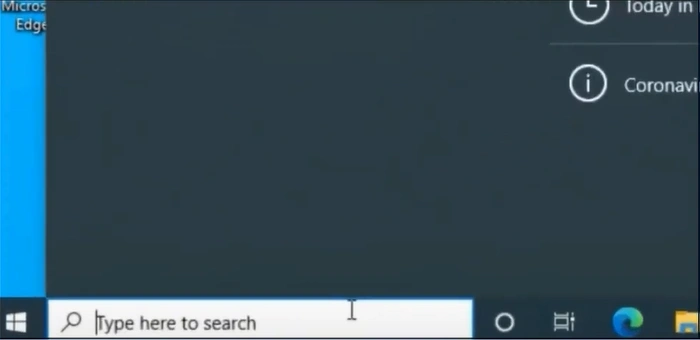
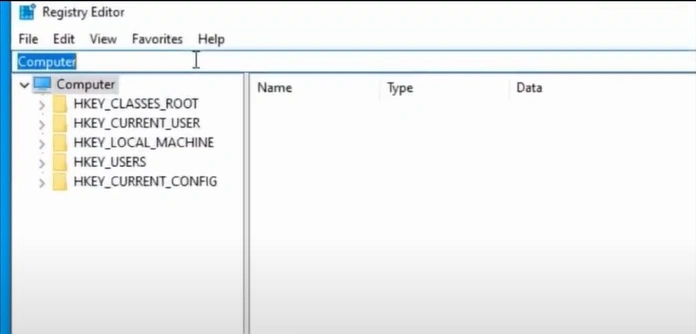
Step 15: Click the Windows start button, search regedit, and open Registry Editor.
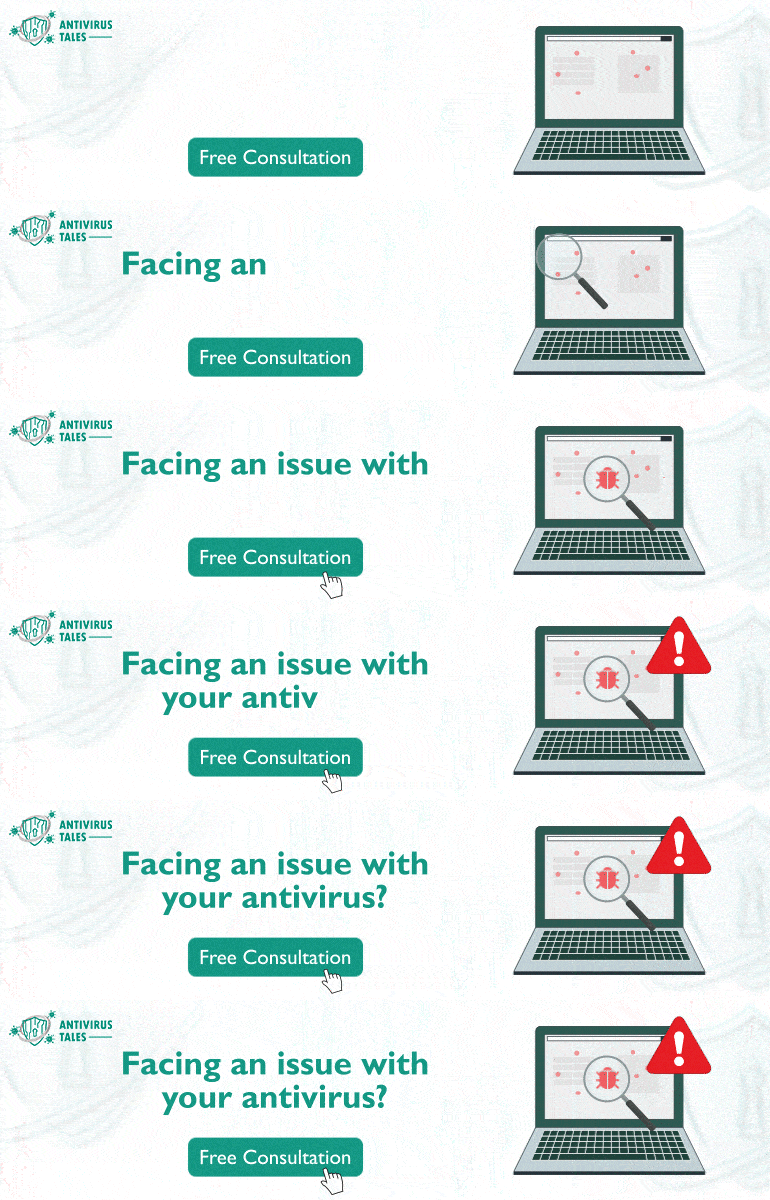
Step 16: Select Yes in the User Account Control window.
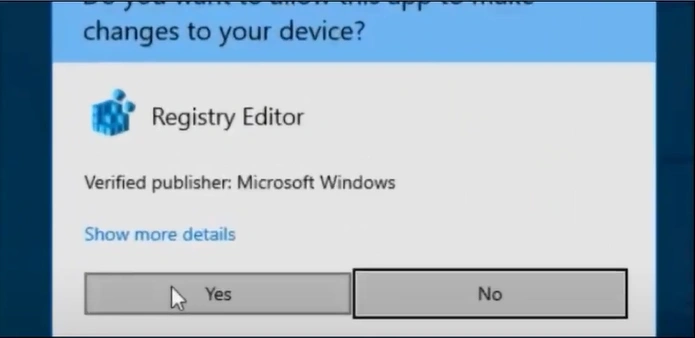
Step 17: Click File in the Registry Editor window and select Export.
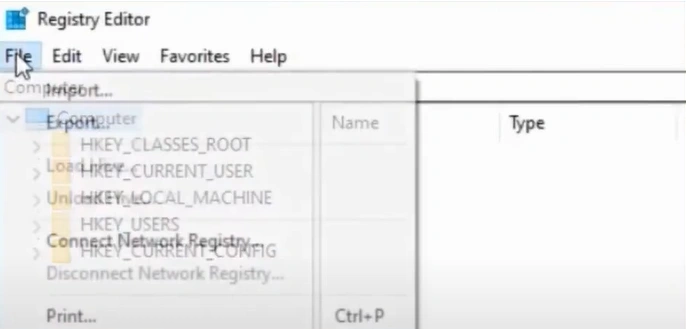
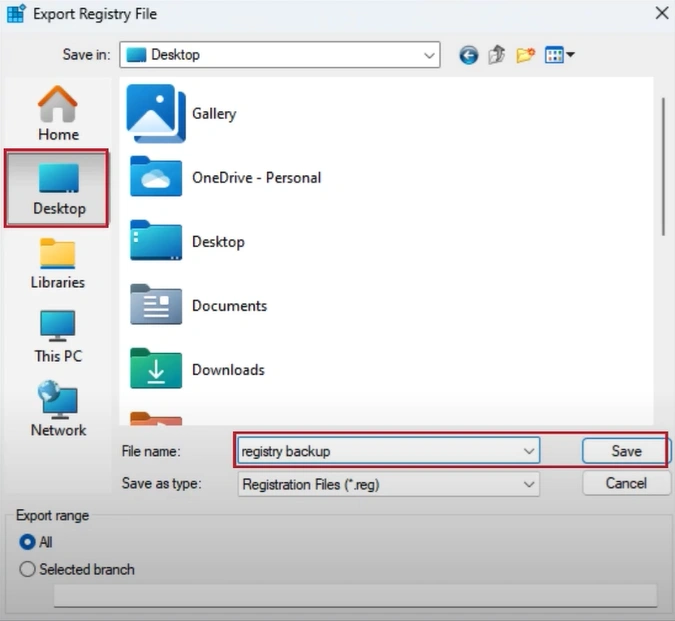
Step 18: Go to Desktop, type in the file name as Registry Backup, and click Save.
Step 19: Use the navigation bar and access HEY_LOCAL_MACHINE\SYSTEM\CurrentControlSet\Services\Sophos MCS Agent.
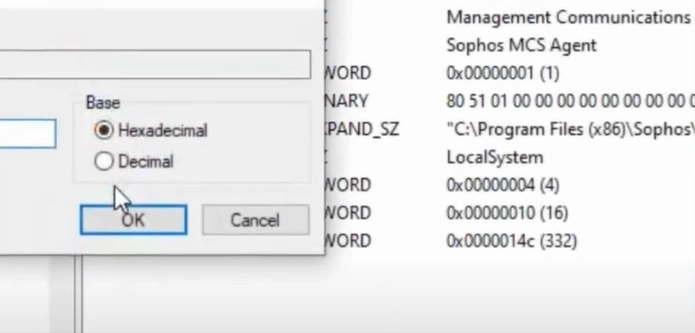
Step 20: Select the Start folder, set the Value Data to 4, and click OK.
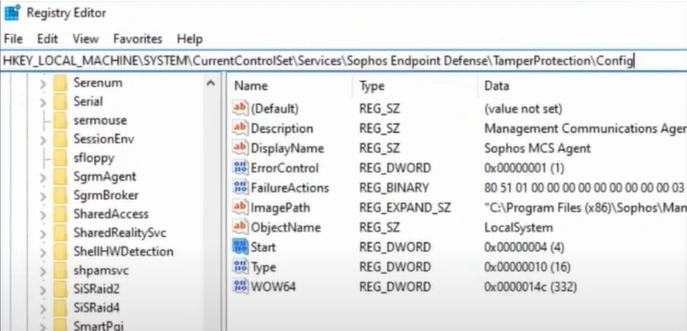
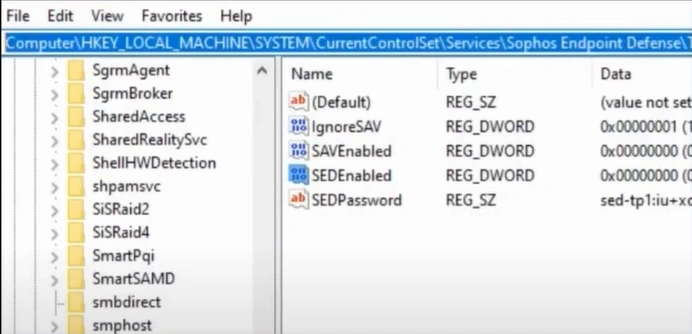
Step 21: Next, navigate to HEY_LOCAL_MACHINE\SYSTEM\CurrentControlSet\Services\SophosEndpoint Defense\TamperProtection\Config.
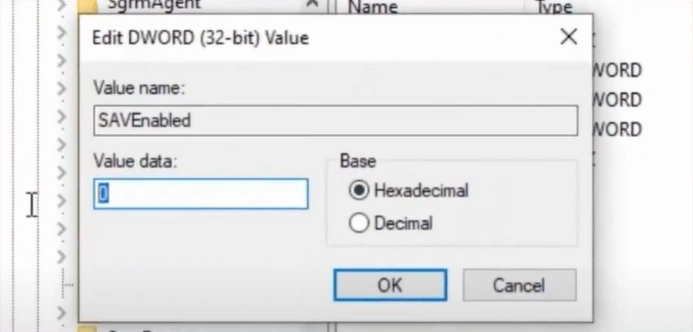
Step 22: Select SAVEnabled, set the Value Data to 0, and press OK.
Step 23: Repeat the same steps for SEDEnabled.
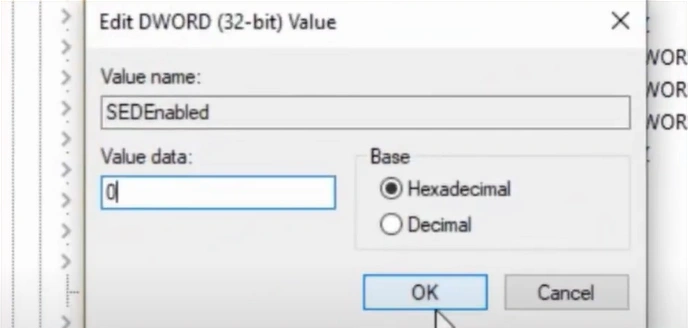
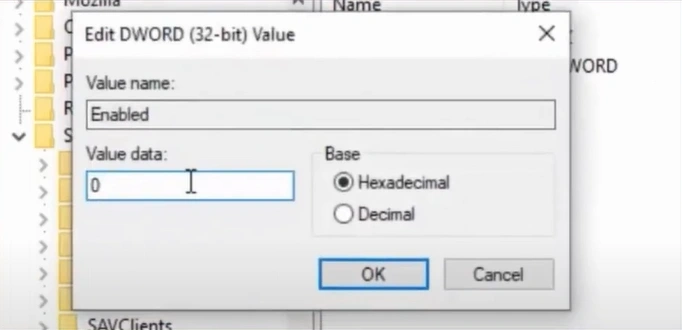
Step 24: Now, navigate to HEY_LOCAL_MACHINE\SOFTWARE\WOW6432Node\ Sophos\SAVServices\TamperProtection.
Step 25: Select Enabled, set the Value Data to 0 and press OK.
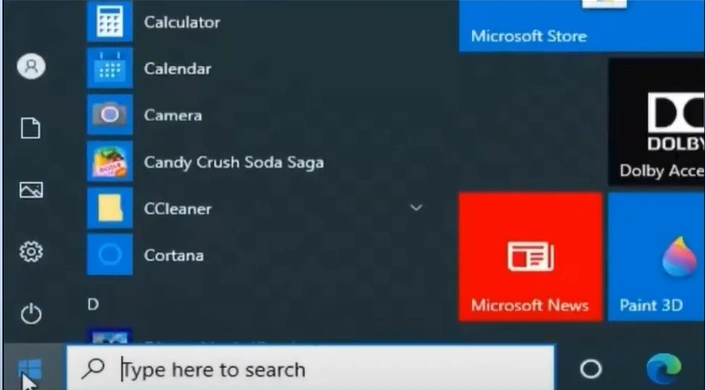
Step 26: Once done, click on the Windows search bar, search Control Panel, and open it.
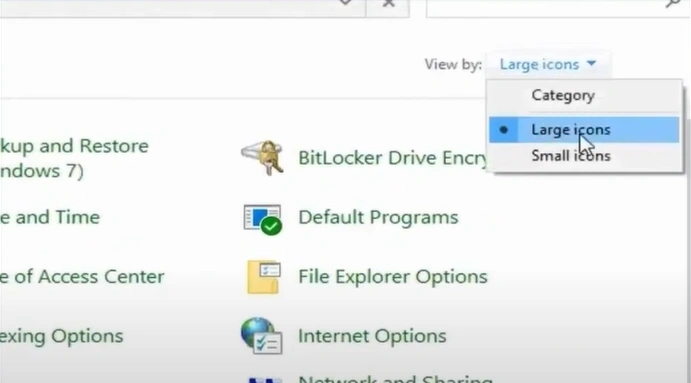
Step 27: Set the View by to Large icons, then select Programs and Features.
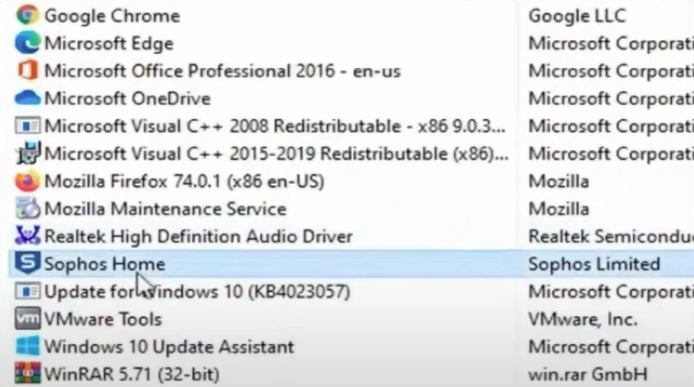
Step 28: Select the Sophos application and click Uninstall.
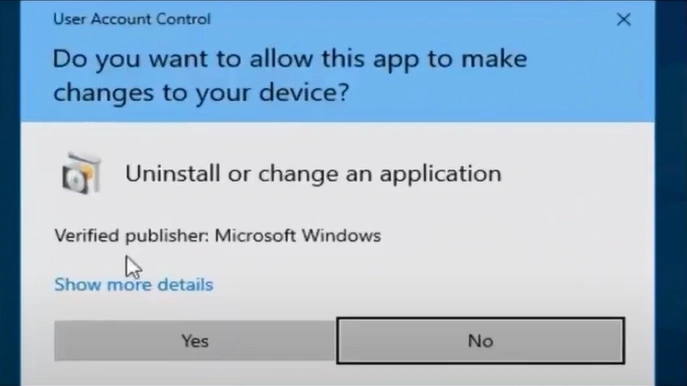
Step 29: Click Yes to allow the app to make changes.
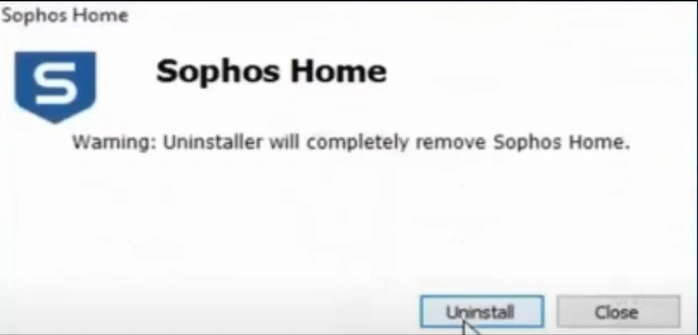
Step 30: Select Uninstall in the pop-up window, and the uninstallation process will take a while.
Step 31: Once the uninstallation is completed successfully, click Close, and the system will restart.
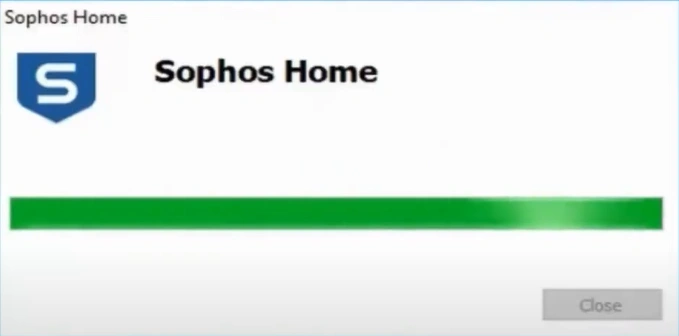
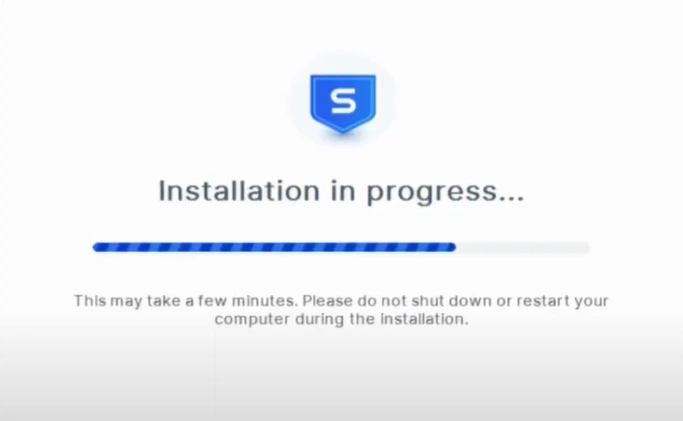
Step 32: Now, try to install Sophos on your system.
To Conclude
Sophos installation or uninstallation issues can arise unexpectedly, but following the above steps can help resolve them effectively. If the antivirus software is not installed correctly, there might be chances that your system may turn vulnerable to threats.
But do not worry; with the above method, you can learn how to resolve Sophos installation and uninstallation issue. Follow all the instructions carefully for a seamless process, and seek professional help if needed.

