
How to Add Malwarebytes Browser Guard?
Are you seeing suspicious pop-ups flashing on your screens as you open your browser? Sometimes, these advertise bumper discounts or claim that you have won a grand prize, though you never entered a contest. That’s a trap - don’t get caught. Clicking on them may result in serious consequences, such as data breaches or financial theft. Stay alert!
What can you do to keep your browser protected from these uncertainties? Malwarebytes Browser Guard is a browser tool that blocks suspicious sites and annoying ads. You just need to add it to your browser, and you’ll make your internet surfing experience a lot safer.

How to add Malwarebytes Browser Guard - that might be the question on your mind right now. We have outlined all the steps to do so. But before we go there, let’s look at the issues that you may face when adding Malwarebytes Browser Guard.
Common Issues When Adding Malwarebytes Browser Guard
When adding Malwarebytes Browser Guard, you may encounter several potential problems, such as:
-
Chatbot and support issues
-
Welcome screen issue
-
Crashing and removal issues
-
Unwanted installation of content
Mistakes to Avoid When Adding Malwarebytes Browser Guard
Most users are likely to make these common mistakes while adding Malwarebytes Browser Guard:
Downloading From Unofficial Sources
Only download Malwarebytes Browser Guard from the official Malwarebytes site or your browser’s official extension store. Unreliable sources can be risky as they provide tampered or malicious versions.
Not Allowing Permissions
The extension requires certain permissions to work effectively. If you deny these permissions, it might restrict the extension from blocking ads, trackers, or suspicious websites.
Not Setting It Up Properly
The default settings of the extension may not provide sufficient protection. Adjust features like ad blocking, tracker blocking, and scam protection according to your browsing habits.
Forgetting to Update
Outdated Malwarebytes Browser Guard versions may fail to detect newer threats. So, you must check that the extension is set to update automatically for peak protection.
Not Testing After Installation
Sometimes, the users may forget to confirm whether the extension is working well after installation. They must visit a safe malware test page to check for active protection.
Steps to Add Malwarebytes Browser Guard
Here are all the key instructions that you need to follow to successfully add Malwarebytes Browser Guard to your computer.
For Chrome
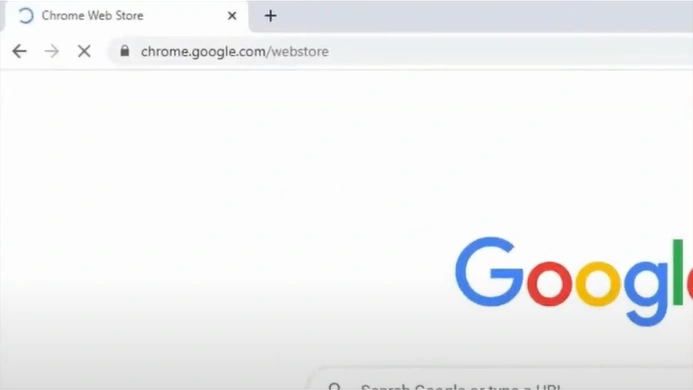
Step 1: Open the Chrome Web Store.
Step 2: Search for Malwarebytes Browser Guard.

Step 3: Open Browser Guard.

Step 4: Select “Add to Chrome” in the Chrome Web Store.

Step 5: In the Add pop-up window, click on the Add Extensions button.

For Safari
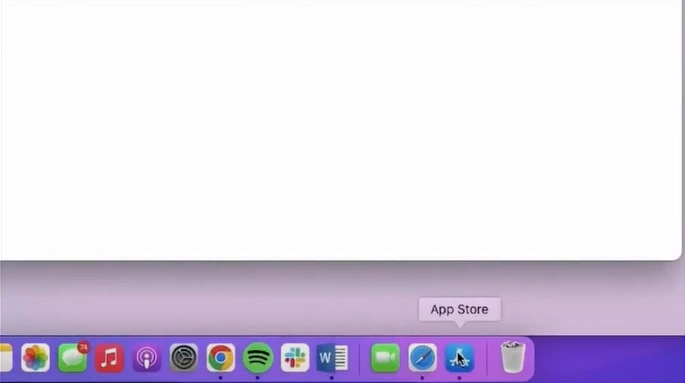
Step 1: Open the App Store.
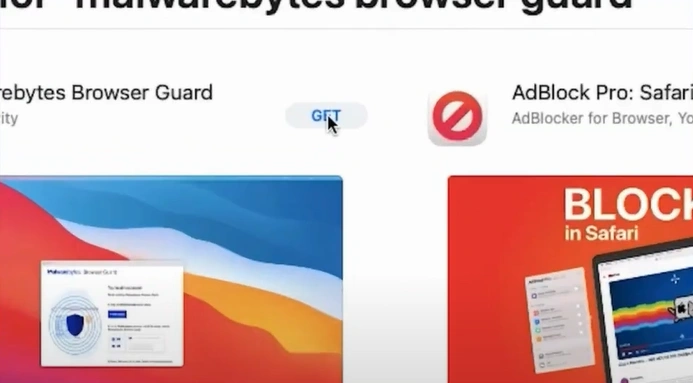
Step 2: Search for Malwarebytes Browser Guard.

Step 3: Click on Get.
Step 4: Click on Install.
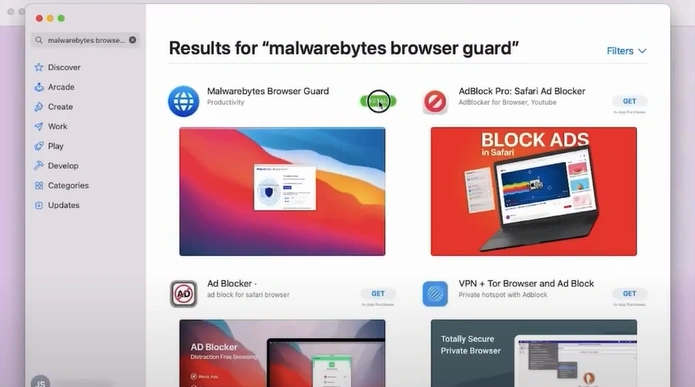
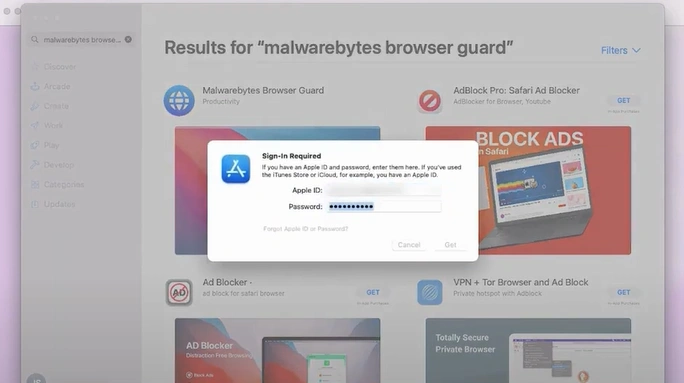
Step 5: Enter your Apple ID password, then click on Get.
Step 6: After downloading, click on Open.

Step 7: Once the app is open, click on Preferences.

Step 8: From the left panel, check the Malwarebytes Browser Guard.

Step 9: Under the Permissions section, click on Always Allow on Every Website.

Step 10: In the pop-up window, select “Always Allow on Every Website.”

Step 11: On the left panel, check all the items.

Also Read:- How to Completely Remove Malwarebytes from PC?
Summing Up
Add Malwarebytes Browser Guard to block pop-ups and dangerous websites. Just follow the steps above, address potential issues, and avoid the common mistakes we have listed. Tackle the potential issues and avoid common mistakes when adding the extension.
Enjoy safe and secure browsing. A quick installation of Browser Guard, and you will browse with peace of mind.

