
How to Turn Off Norton 360 for Gamers Antivirus?
You’re all set to play the latest racing game on your PC, something you’ve been waiting for months. But during the session, an unexpected Norton 360 for Gamers notification pops up, breaking your focus and frustrating you. It’s not that you don’t value Norton’s protection - you just want uninterrupted gameplay. So, what can you do to stop these notifications from appearing every time you launch your game?
Many users choose to disable Norton 360 for Gamers antivirus in certain cases, mainly to improve gaming performance. But how do you do it the right way? We have outlined the proper steps to turn off Norton 360 for Gamers antivirus. Before that, let’s go through the common mistakes you should avoid.

Mistakes to Avoid When Turning off Norton 360 for Gamers
While disabling Norton 360 for Gamers antivirus, users are likely to make certain mistakes. Here are some of the common mistakes to avoid during the process:
Using the Wrong Path in Norton
It often happens that users choose the wrong section of Norton when disabling it. They may go to Device Security instead of Settings > Antivirus. This can turn off the wrong feature or fail to stop the intended protection.
Choosing the Wrong Duration
It may also be possible that you click on “Disable” but choose “Permanently” or “Until system restart” without knowing the consequences. This one mistake can leave your system exposed to malware or cyber attacks longer than necessary.
Clicking the Wrong Disable Button
Norton comes with a myriad of protection features such as Auto-Protect, Firewall, and Email Protection. Users might make the mistake of turning off one of the features and assume that all are off. The component causing the interruption may still be active. So, it is important to understand the functioning of every feature before turning it off.
Not Closing Apps Before Disabling
Another big mistake is leaving browsers, download managers, or untrusted apps open when turning off Norton. This can cause malware or scripts to run when the system is left unprotected. So, close all non-essential applications before disabling the antivirus, and ensure no risk.
Forgetting to Turn Protection Back On
Don’t forget to enable Norton software again after you’re done playing. This can leave your system vulnerable to malware or cyber attacks. You can set a reminder or schedule automatic reactivation to avoid forgetting to turn the protection back on.
Problems When Turning off Norton 360 for Gamers Antivirus
Here are a few possible problems that you may face while trying to turn off Norton 360 for Gamers antivirus:
-
Interrupted downloads or blocked processes
-
Firewall disabling
-
Performance issues
-
Reactivation issues
Steps to Turn Off Norton 360 for Gamers Antivirus
You need to follow these simple instructions to turn off your Norton 360 for Gamers antivirus:
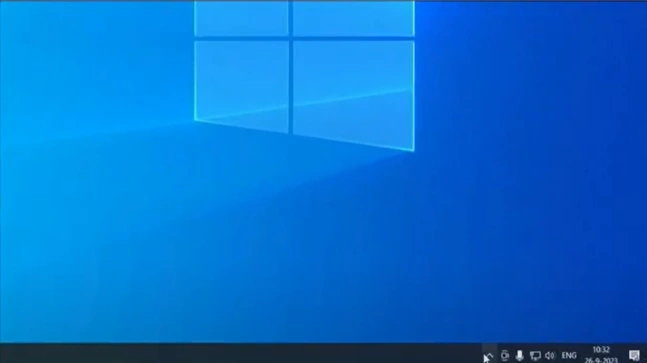
Step 1: Click the Show hidden icons arrow on the bottom-right of your Windows taskbar.
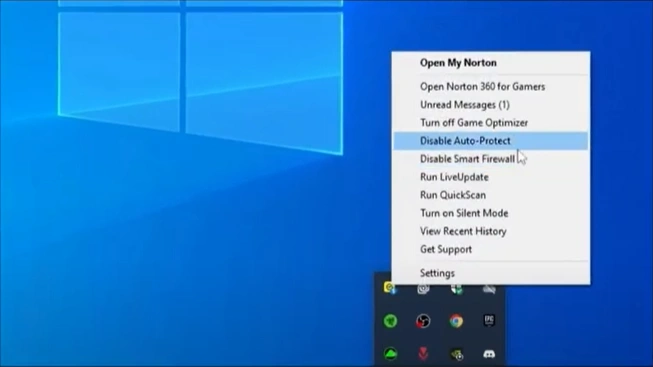
Step 2: Right-click on the Norton icon, then select the Disable Auto-Protect option.
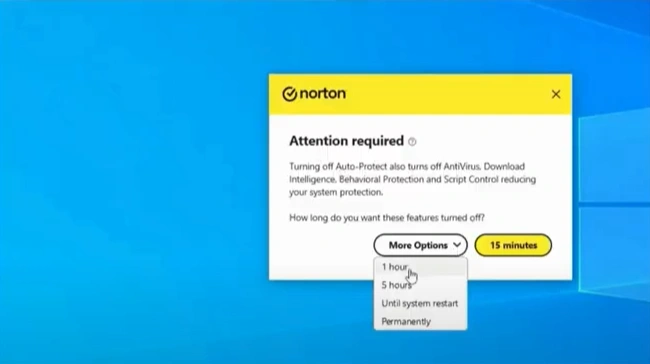
Step 3: Click the More Options dropdown and choose how long you want protection disabled.
Wrapping Up
That’s all you need to do to disable Norton 360 for Gamers antivirus. Follow the instructions carefully and avoid the mistakes we discussed above. Make sure you choose the right path in the Norton interface, select the correct disable button, and re-enable protection afterward.
You may also face issues like firewall conflicts, performance slowdowns, or reactivation errors. Address these problems properly to ensure the process goes smoothly.

