
How to Add Exclusion to Bitdefender?
On an ordinary day, while working or launching a program, Bitdefender might unexpectedly block something you trust, which leads to confusion and frustration.
While Bitdefender offers strong protection, it may occasionally block trusted apps or files by mistake. For example, Bitdefender might flag applications like Nexus Mod Manager, which includes many ZIP files, as potential threats.

Don’t worry - mistakenly marking safe files or apps as unsafe is a common issue with Bitdefender. You can resolve this by adding exclusions in the Bitdefender settings. Let’s go through the process of adding exclusions. But first, we’ll look at the potential issues you may face while doing so.
Common Issues When Adding an Exclusion in Bitdefender
Users may encounter the following issues when attempting to add an exclusion to Bitdefender. These could be:
-
Exclusion rules not working
-
Limited control over exclusions
-
Exclusion rules not applied to all scanning modules
-
Difficulty in configuring exclusions
Steps to Add an Exclusion in Bitdefender
Bitdefender may sometimes block a file or program that you know is safe. It may restrict it from launching. To prevent this, add the specific item to the exclusions list. Want to add exclusion to Bitdefender? Here are the steps you need to follow:
Step 1: Open your browser and go to the Bitdefender login website.
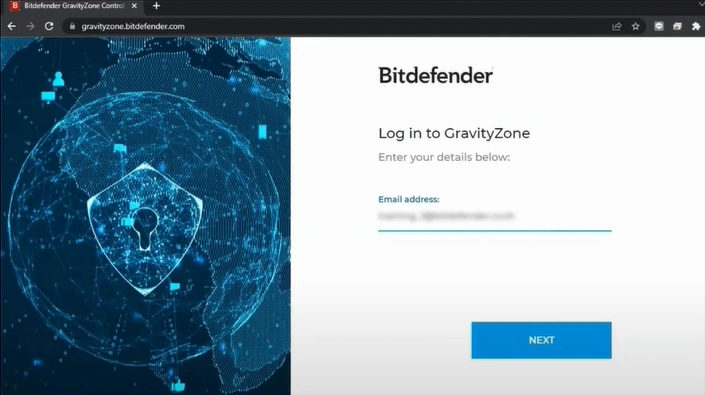
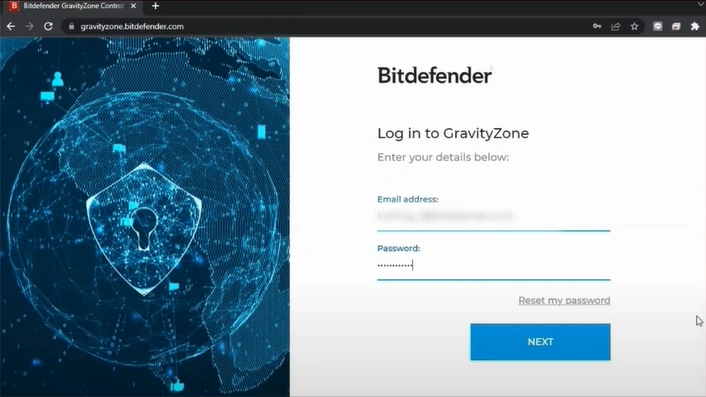
Step 2: Log in to your account using your email address and password.
Step 3: Open Bitdefender on your computer.
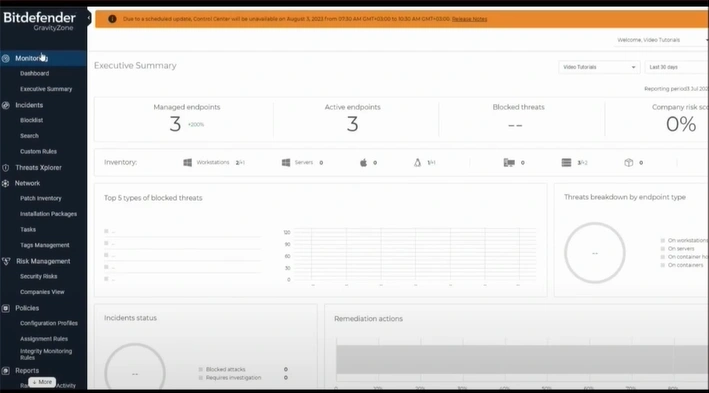
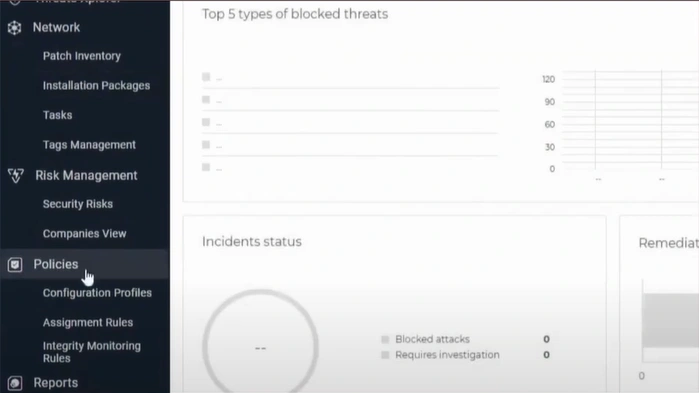
Step 4: Click on "Configuration Profiles" under "Policies" in the left menu bar.
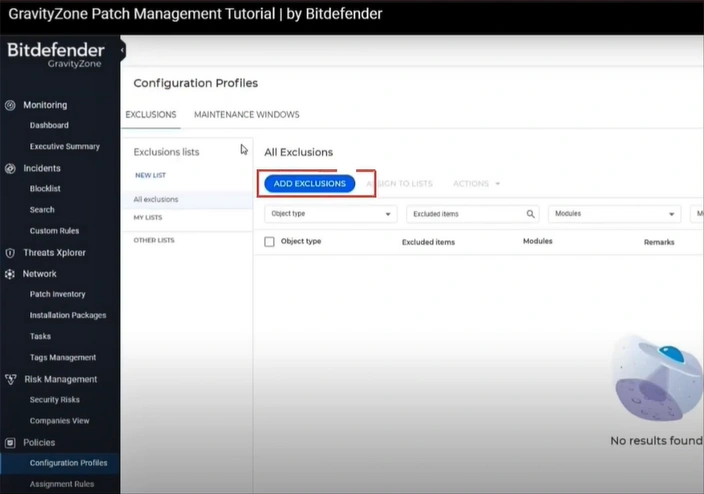
Step 5: Finally, click the Add Exclusions button.
Also Read:- How to Disable Bitdefender Pop Ups?
To Sum Up
By following the steps above, you can easily add exclusions in Bitdefender and avoid safe apps or files from being wrongly blocked. This helps ensure your trusted programs run without interruptions, letting you focus on your work without worrying about antivirus interference while still keeping your system safe and protected from real threats.

