
How to Disable Avira Antivirus Temporarily?
Are you struggling to install new software? Have you tried installing it on your computer but failed every time? Why is that happening? That’s probably the only question on your mind. It may be the Avira antivirus on your PC that’s blocking the installation.
Avira is a robust security solution that protects your PC, but sometimes it can interfere with your tasks. Uninstalling Avira is an option, but it’s not the best or safest choice. A better solution is to temporarily deactivate it.

By temporarily disabling Avira, you can avoid the frustration of false positives (when a trusted program is incorrectly marked as a threat). Wondering how to do it? Let’s walk through the steps to disable Avira temporarily. But first, let’s understand why this action might be necessary.
Why Disable Avira Antivirus Temporarily?
There may be several reasons why users need to turn off their Avira antivirus program. Here are a few common reasons:
-
Performance issues
-
False positives
-
Software installation conflicts
-
Lag when gaming or using any heavy software
-
Network or system-related issues
Potential Issues You May Face When Disabling Avira Antivirus
When trying to turn off Avira antivirus, you may face the following potential problems that may hinder the process:
-
Improper protection
-
Residual files or registry entries
-
Conflicting security software
-
System instability
2 Solutions to Disable Avira Antivirus Temporarily
Let’s glance at the ideal solutions to disable Avira antivirus temporarily on your system:
Method 1: Disable Without Opening the App
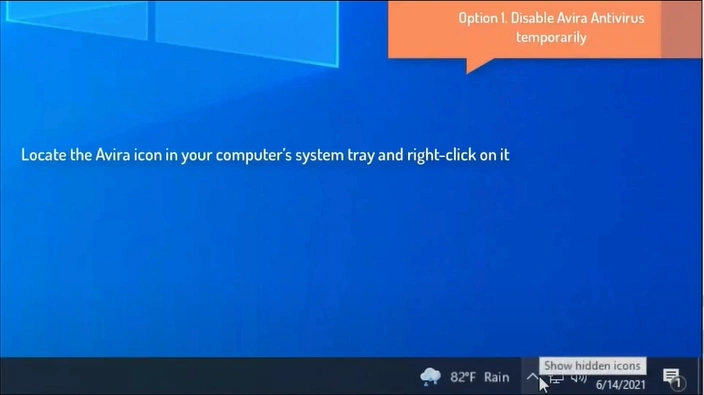
Step 1: Click on the expand arrow on the right side of the taskbar.
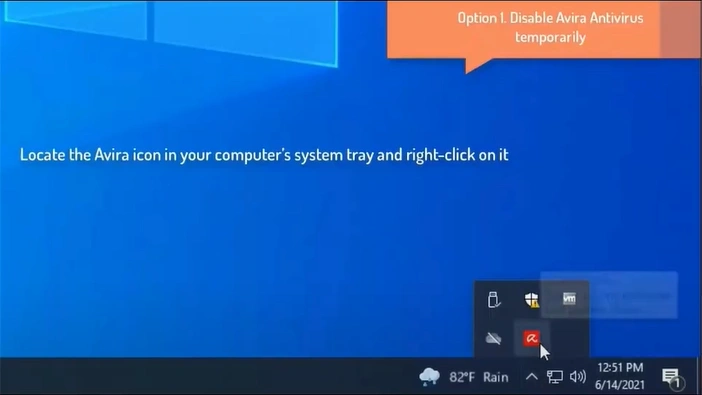
Step 2: Right-click on the Avira or Umbrella icon.
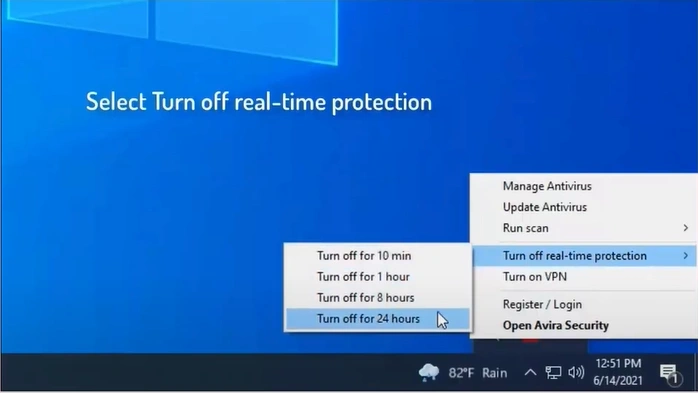
Step 3: Click "Turn off Real-Time Protection," then select a specific period.
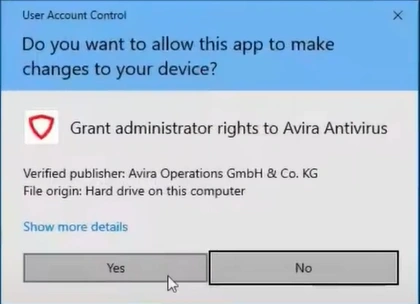
Step 4: In the User Account Control window, click on Yes to grant administrator rights.

Method 2: Disable on the App
Step 1: Open your Avira antivirus.
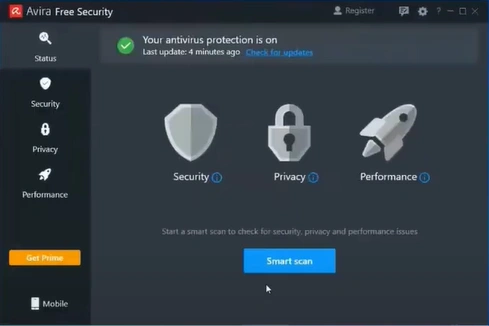
Step 2: Click on Security in the sidebar.
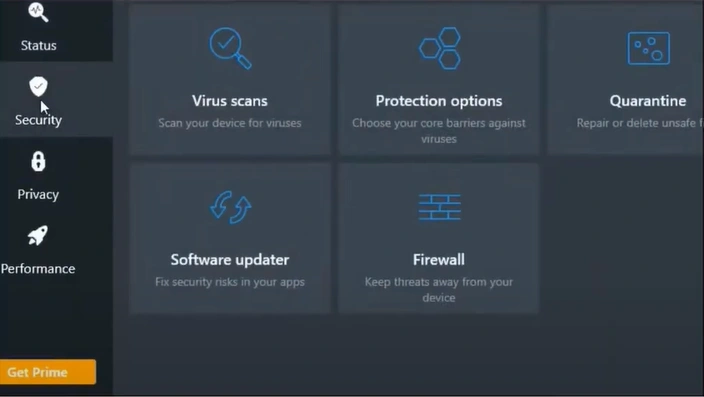
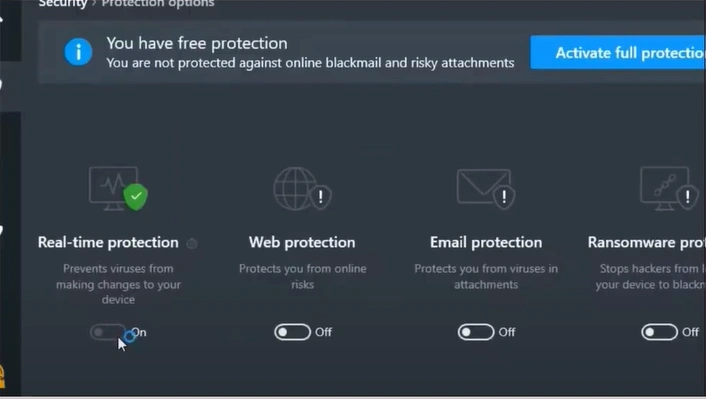
Step 3: Open Protection Options.
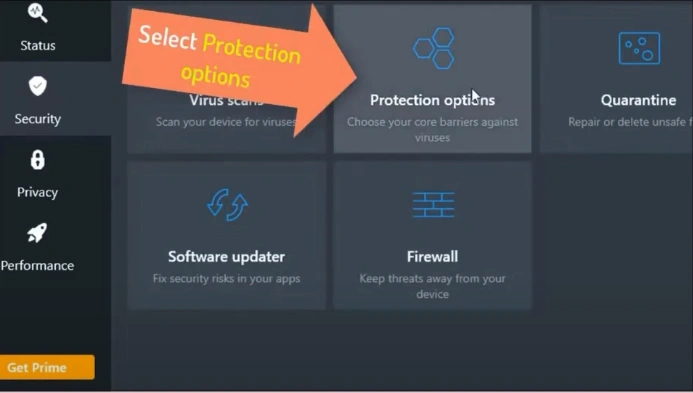
Step 4: Go to Real-Time Protection and disable it.
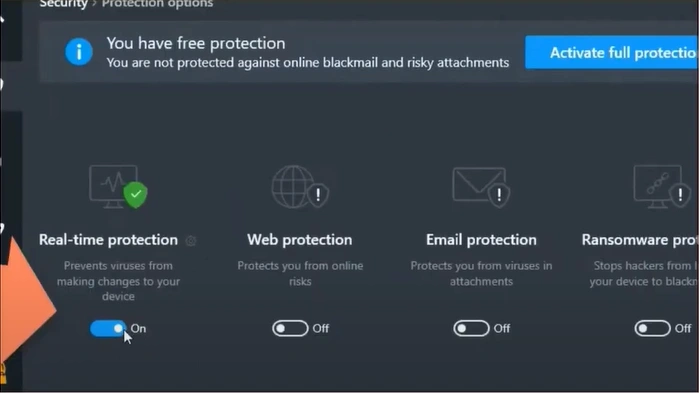
Step 5: Select a period from the dropdown and click "Turn off."
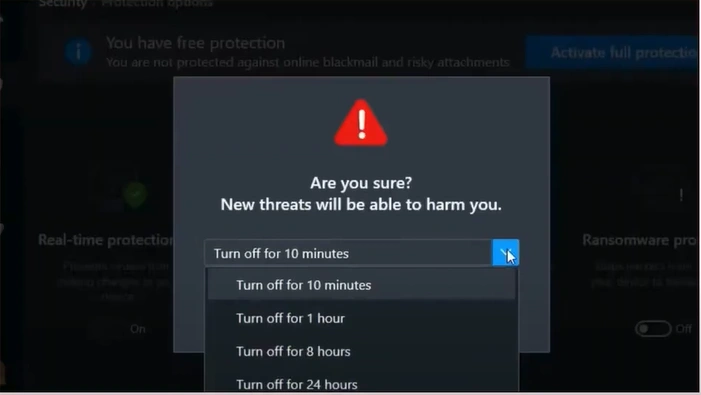
Step 6: In the User Account Control window, click on Yes to grant administrator rights to Avira.
Important Tips to Follow When Turning Off Avira Antivirus
You should be aware of some important tips when temporarily turning off Avira antivirus on your system. A few of them are as follows:
Disconnect Internet
Disconnect your device from the internet when disabling Avira. This way, you can lessen the chances of malware or unauthorized access.
Use Exceptions
Consider adding certain files or apps to the exception list of Avira when the antivirus blocks them. It is a great way to deal with false positives.
Don’t Download Unknown Files
With Avira antivirus disabled on your system, avoid downloading files from untrusted sources. As there is no protection, your system won’t detect any potential risks.
Also Read:- How to Troubleshoot Can’t Install Avira Antivirus Issue?
Wrap Up
Permanently uninstalling Avira may not be a wise decision, as it could compromise your system’s security. Temporarily disabling Avira antivirus can be a better solution for continuing to install trusted apps without any risks. Once you have installed the apps, you can simply enable Avira again and restore its full protection.
Simply follow the instructions above and keep the important tips in mind to ensure a hassle-free process.

