
How to Add an Exception to Bitdefender?
Have you ever tried launching a trusted app during work, only for it to fail unexpectedly? You double-checked everything and even restarted your system, but nothing seemed to work. At first, you might have assumed it was a virus or malware causing the issue, but it turned out to be something else: Bitdefender, which has been installed on your computer for months.
Bitdefender can sometimes become overly strict and block trusted resources. That can definitely be frustrating, but you need to take action to continue with your tasks. This guide will walk you through the correct steps to add an exception in Bitdefender. First, let’s understand why adding exceptions is important.

Why Should You Add an Exception in Bitdefender?
The primary purpose of Bitdefender is to protect a computer against viruses and malware. Sometimes, users may need to add exceptions to prevent Bitdefender from blocking safe files or programs. By adding exceptions, you can bypass certain files, folders, or processes from Bitdefender’s real-time scanning and other security features.
Perhaps a legitimate application or software, such as Adobe Photoshop, is being flagged as unsafe, or it is causing performance issues due to constant scanning. By adding an exception, you can lessen these hitches. Bitdefender may sometimes block trusted websites, although this depends on your version's web protection settings.
Potential Issues When Adding an Exception in Bitdefender
When adding an exception to Bitdefender, you may face several potential issues, such as:
-
Difficulty creating antivirus exceptions
-
Inconsistent behavior
-
Limited exception types
-
Difficulty in tracking whether the exception was applied successfully
Steps to Add an Exception in Bitdefender
Do you want to stop Bitdefender from blocking a safe, trustworthy file or software on your computer? Adding an exception to Bitdefender is a solution. Keep the following steps in mind to add exceptions:
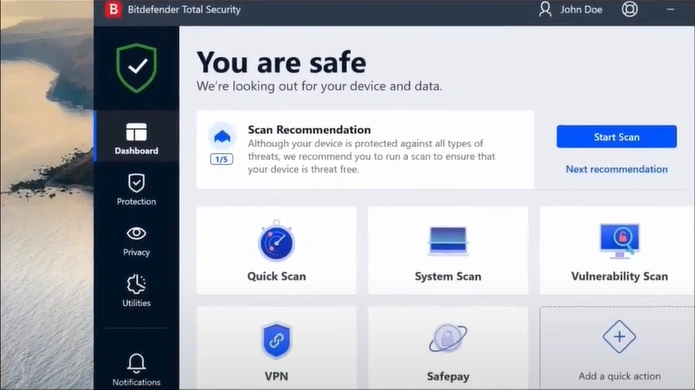
Step 1: Launch your Bitdefender application.
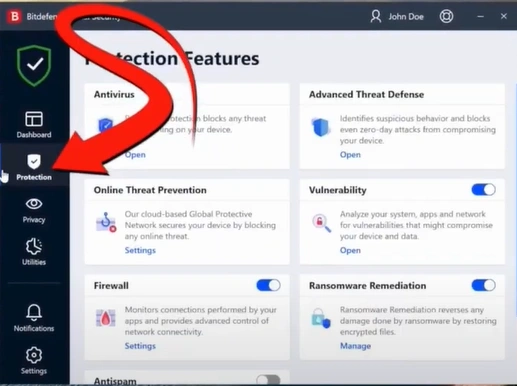
Step 2: Click on the Protection tab from the left panel.
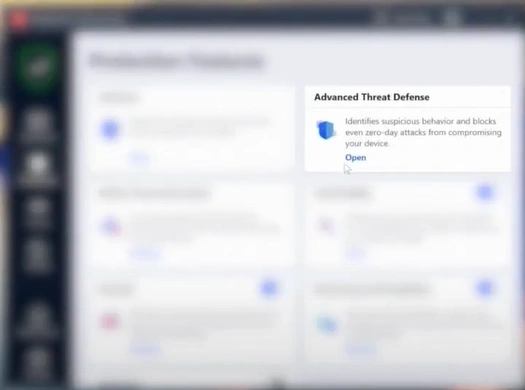
Step 3: Navigate to Advanced Threat Defense, then click Open.
Step 4: Click on Settings.

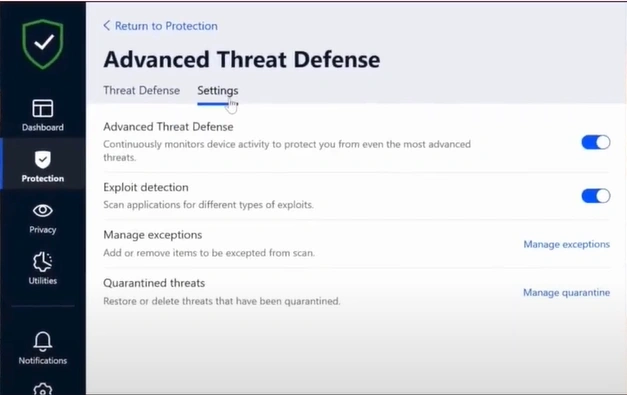
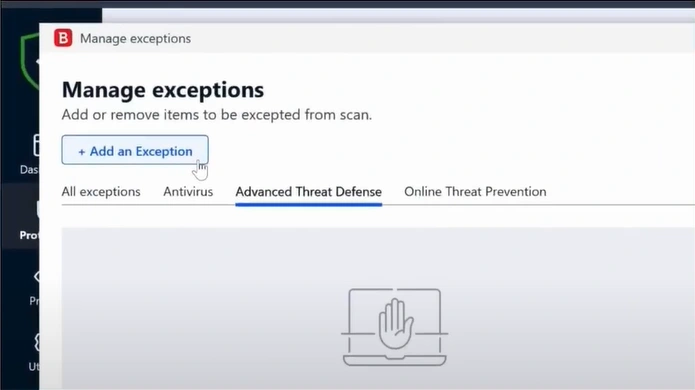
Step 5: Click on Manage Extensions, then select Add an Exception.
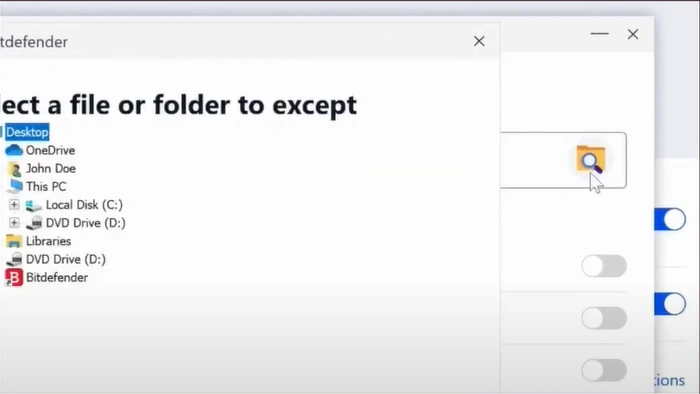
Step 6: Click the Browse icon, select the file or folder, and then click OK.
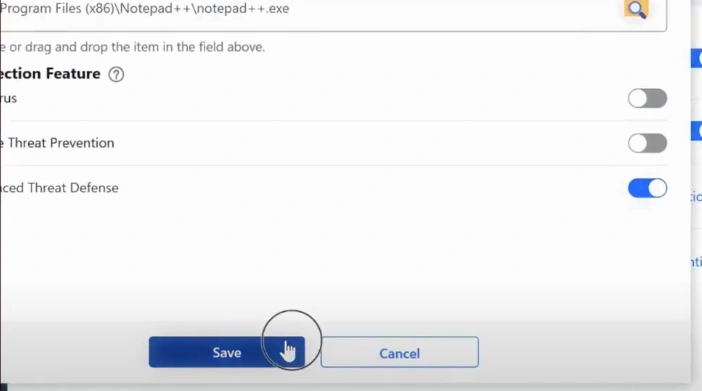
Step 7: Finally, click on the Save button.
Extra Tips for Adding Exceptions in Bitdefender
Here are a few essential tips to remember for adding exceptions to Bitdefender safely:
Update Bitdefender Regularly
It is essential to keep your Bitdefender software up to date. That’s because false positives, at times, are fixed in newer updates. Once updated, you may not have to add an exception at all.
Add to Both Antivirus and Firewall
If a program requires network access, you must add it to both the Antivirus Exclusions and Firewall Rules in Bitdefender.
Use Quarantine Log as Reference
If Bitdefender has blocked a file you consider safe, take a look at the Quarantine section. You can restore that file from there and even create an exception directly.
Restart After Changes
A quick system restart can be necessary for the exception to be fully effective. You can do it if you still face any problems after adding exceptions.
Also Read:- How to Add Exclusion to Bitdefender?
To Sum Up
If a trusted program isn’t working, Bitdefender could be blocking it. Though it is developed for your system protection, its strict security features are making you feel frustrated.
Getting stuck in the middle of any crucial task is something you cannot afford. So, just add some of your items to the exceptions list of Bitdefender. There is no need to uninstall Bitdefender completely, as doing so would compromise your system's security. Follow the steps above to add exceptions and continue your work without interruptions.

