
How to Stop McAfee Spam Emails on iPhone?
One morning, I picked up my phone to check my emails, as I usually do first thing after waking up. As I scrolled through my inbox, I noticed something strange. A flood of emails from McAfee filled my inbox, each warning of threats or urgent security alerts. I panicked and immediately started looking for a solution.
My inbox was so cluttered that I couldn’t find my important emails. I needed to act quickly to stop the constant stream of McAfee emails.

I remembered that my neighbor had faced a similar situation, and with just a few quick steps, he managed to stop the spam messages. I followed the same method he used and successfully blocked those annoying spam emails. It was a huge relief to find a solution, and I'm here to share it with you. But first, let's discuss the potential problems you may encounter.
Problems You May Face When Blocking McAfee Spam Emails
When you attempt to stop McAfee spam emails on your iPhone, you may face several potential problems, such as:
-
Limited spam protection
-
Ineffective email filtering
-
Inconsistent email behavior
-
Trouble blocking senders
Are you constantly receiving spam emails flagged by McAfee on your iPhone? If so, then you must follow the right steps to stop McAfee spam emails and keep your device protected. Here's how you can do it:
On iPhone
Step 1: Open Mailbox on your iPhone.
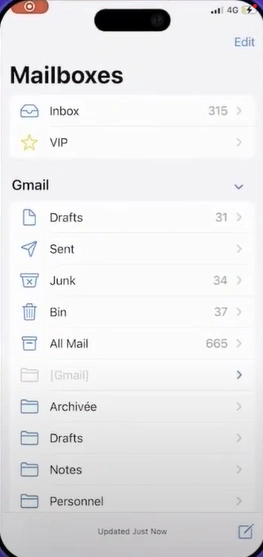
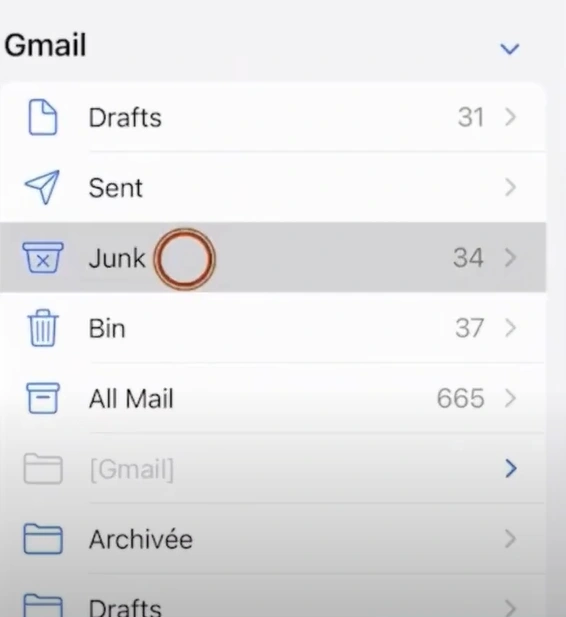
Step 2: Tap the "Junk" option.
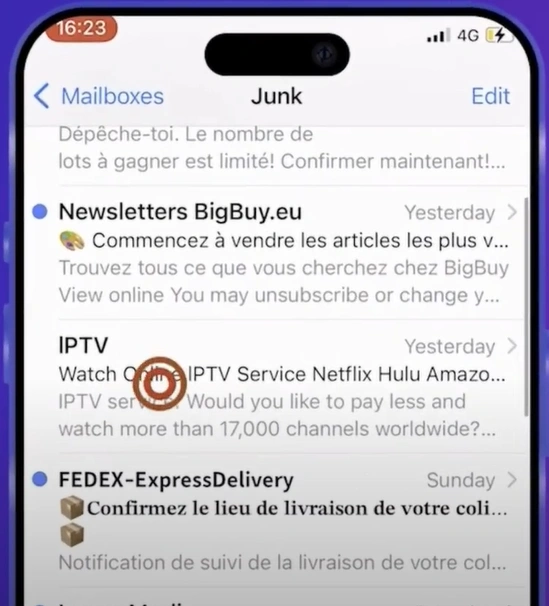
Step 3: Tap on the email message from the sender you want to block.
Step 4: Tap the sender’s email address, listed next to "From."
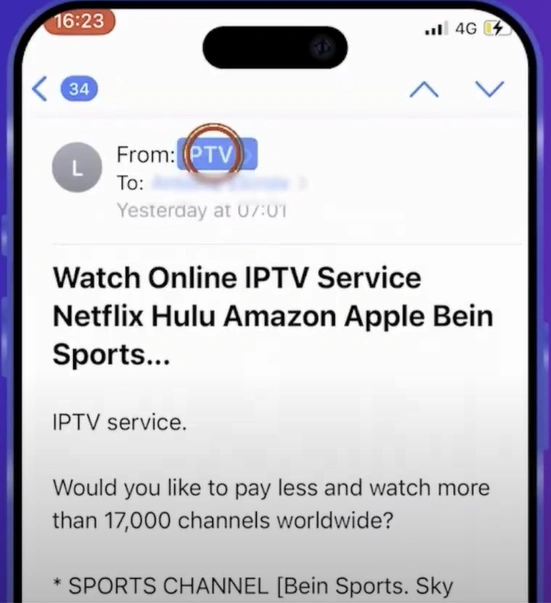
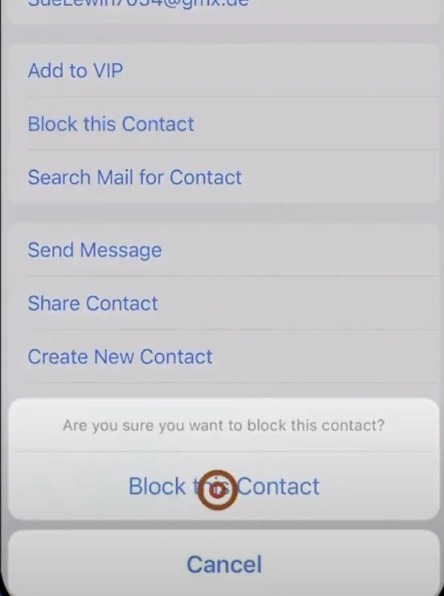
Step 5: Scroll and select the “Block this Contact” option.
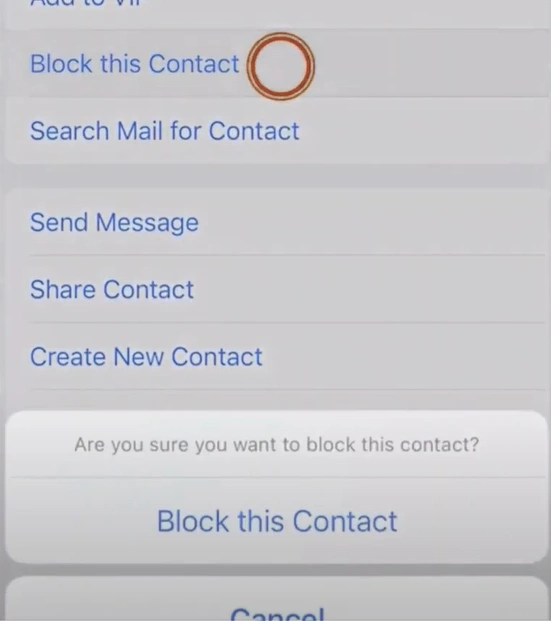
Step 6: Tap "Block this contact" again to confirm.
From iCloud Website
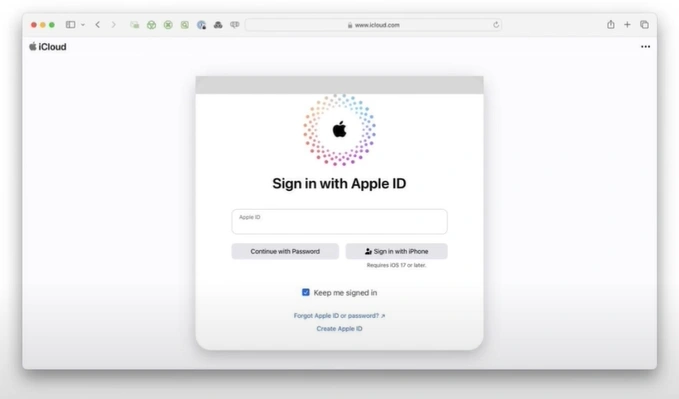
Step 1: Open your browser, go to the iCloud official website, and sign in to your account.
Step 2: Select the mail.
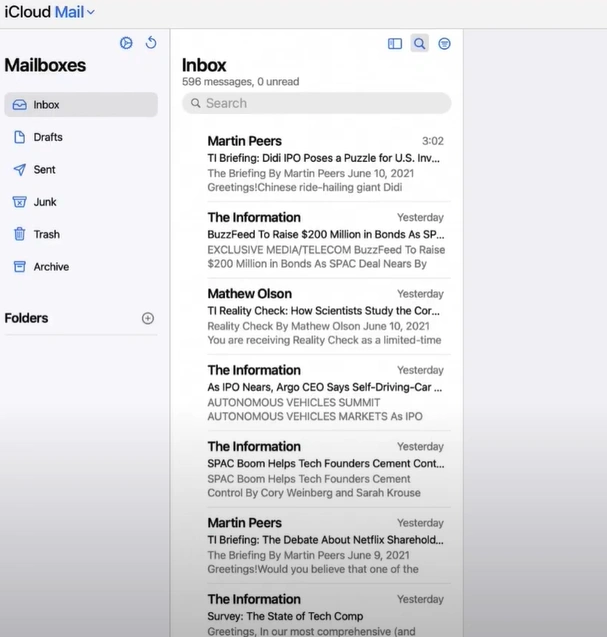
Step 3: Click the settings icon and choose Settings.
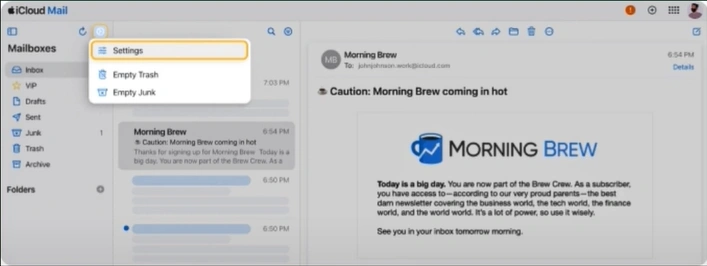
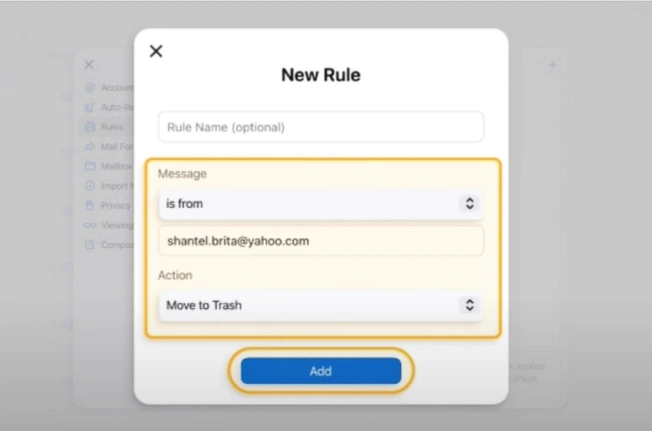
Step 4: Go to the Rules tab and select + Add New Rule.
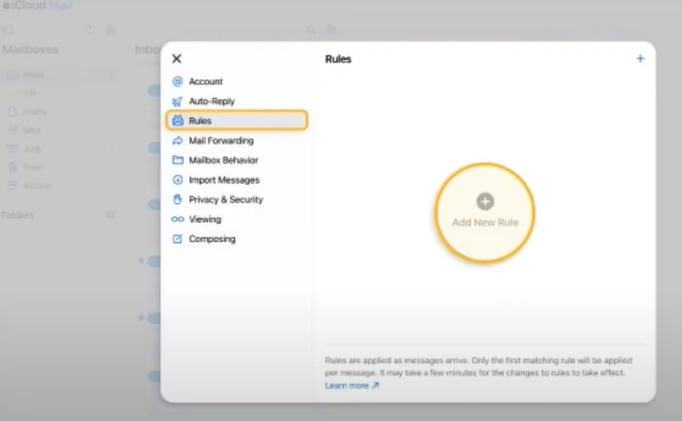
Step 5: In the “If a message” drop-down menu, select “is from” and enter the sender’s email address.
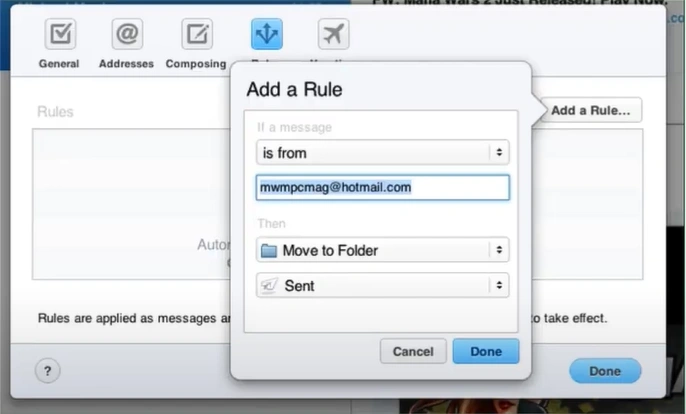
Step 6: In the Action drop-down menu, choose Move to Trash.
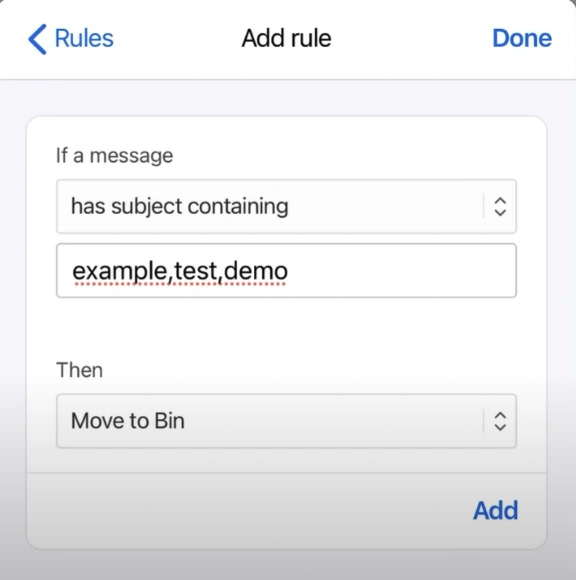
Step 7: Click on Add.
Also Read:- How to Take Off McAfee Auto Renew?
Takeaway
You no longer have to deal with recurring spam emails that appear to come from McAfee. Clear the clutter from your inbox and find your important emails with ease. Follow the steps above to block McAfee spam emails directly from your iPhone or through the iCloud website.

