
How to Delete AVG Secure Browser Completely?
My computer had been running smoothly and fast for years. But one day, it started to slow down, and it was constantly opening unwanted tabs. At the top, it read: AVG Secure Browser.
At that moment, I overlooked it, thinking it was a minor glitch that would resolve on its own. But soon after, it began popping up at startup, slowing operations and stubbornly refusing to close easily. “This isn’t a minor issue. I need to fix it,” I muttered to myself.

That was when I decided to take action and delete AVG Secure Browser completely from my system. Let me share the exact steps I took to remove it, starting with the potential issues you may face during the uninstallation process.
Problems You May Face When Deleting AVG Secure Browser
Deleting the AVG Secure Browser is simpler than you think. However, some issues may occur during the uninstallation process, such as:
-
Error messages
-
System instability
-
Incomplete uninstallation
-
Browser hijacking
The Process to Delete AVG Secure Browser
Here are the ideal methods you need to know to uninstall AVG Secure Browser from your device:
On Windows
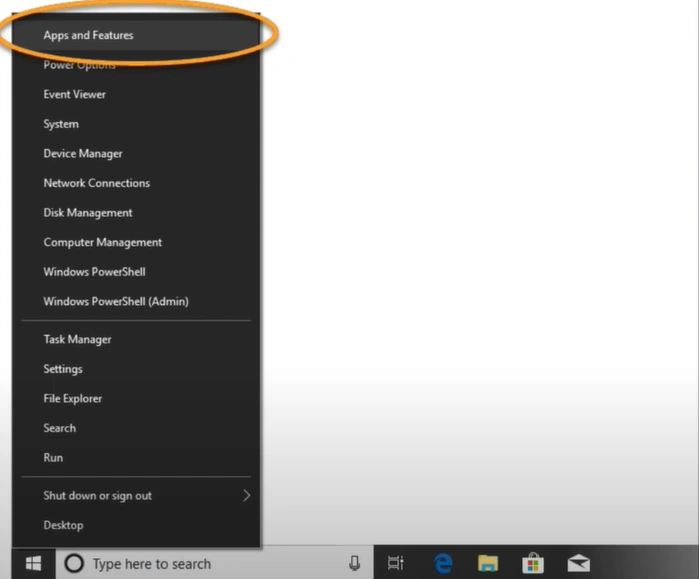
Step 1: Right-click the Windows Start icon and select "Apps and Features."
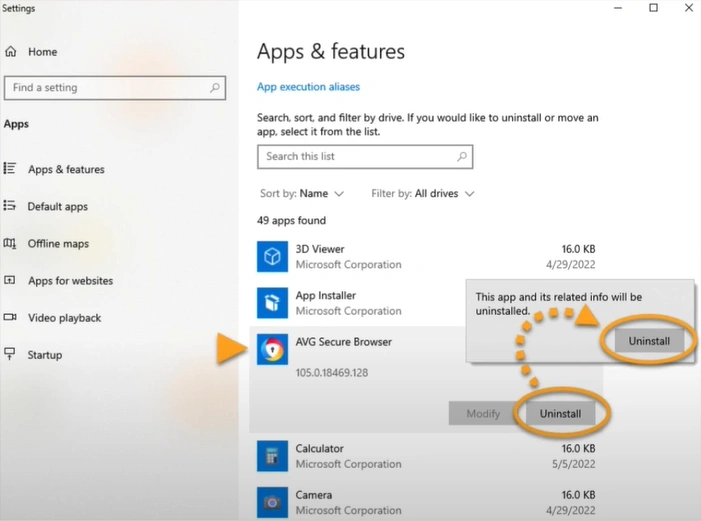
Step 2: Click on AVG Secure Browser, then select Uninstall twice to proceed.
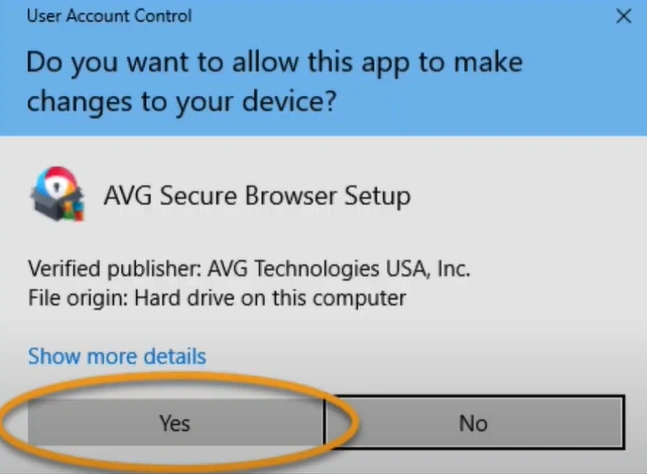
Step 3: If you receive a User Account Control prompt requesting permission, click Yes to proceed.
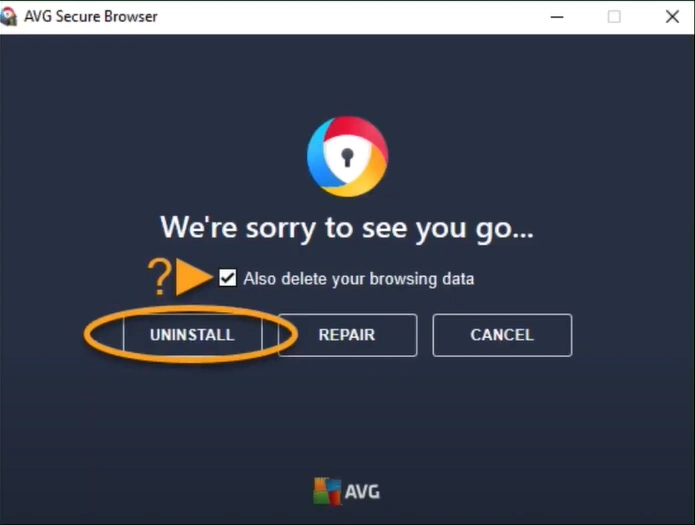
Step 4: Tick the box next to Also Delete your Browsing Data and click Uninstall.
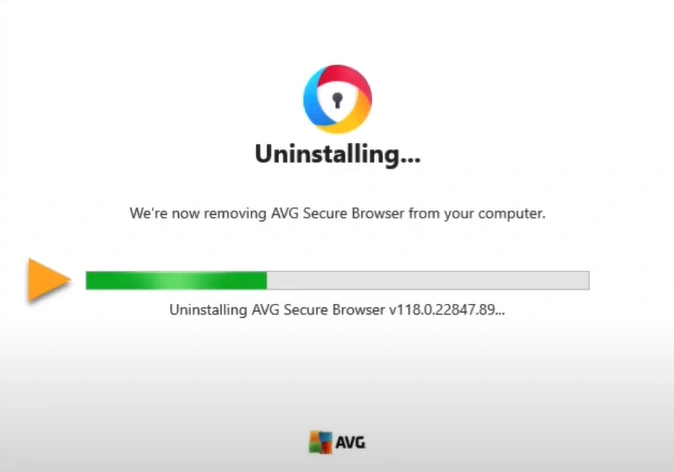
Step 5: Wait for the uninstallation to complete.
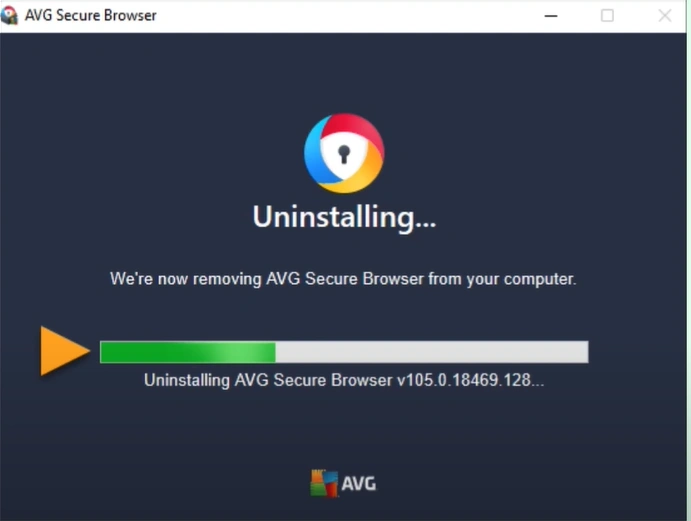
Step 6: When you get the Uninstallation Complete screen, close the window.
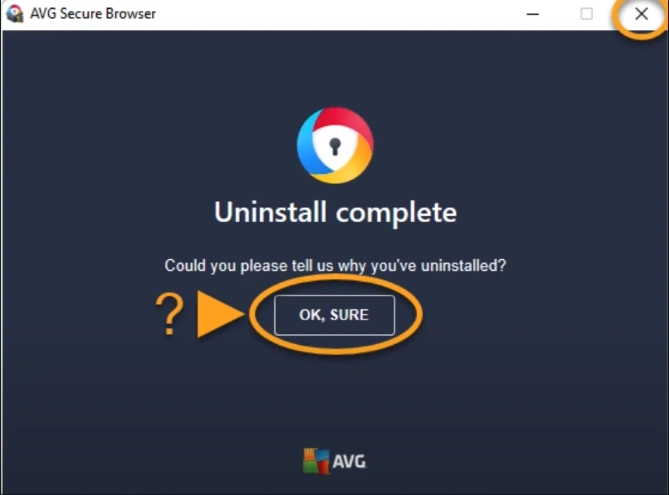
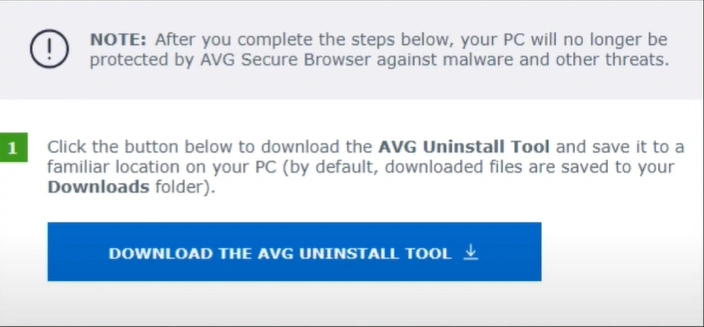
Step 7: If the uninstallation process is unsuccessful, download the AVG Secure Browser Uninstall tool from the official website.
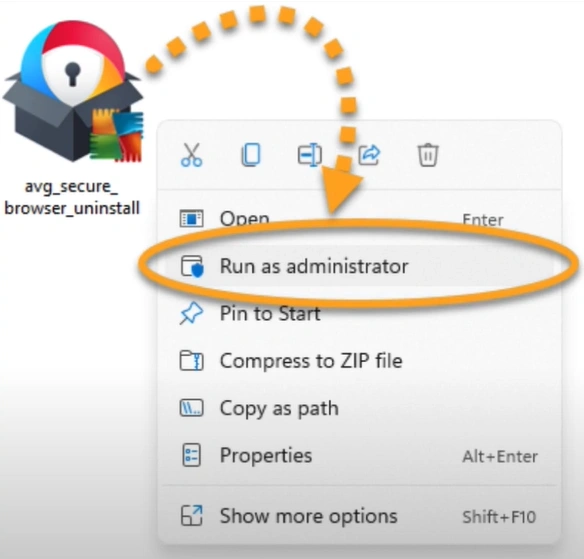
Step 8: Right-click the downloaded file and select 'Run as Administrator.'
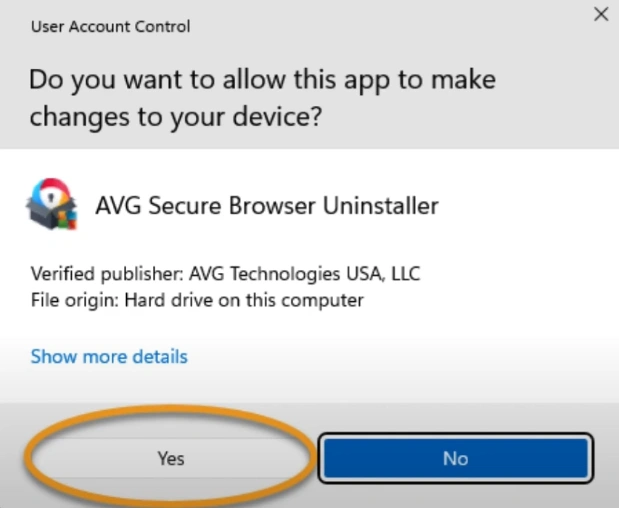
Step 9: If you have the User Account Control prompt, click Yes to allow.
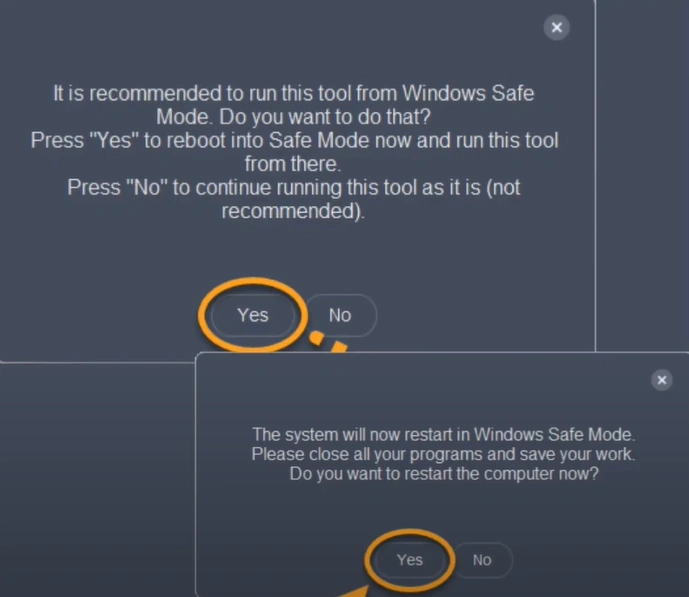
Step 10: Click "Yes" when prompted to restart Windows in Safe Mode, then click "Yes" again to proceed.
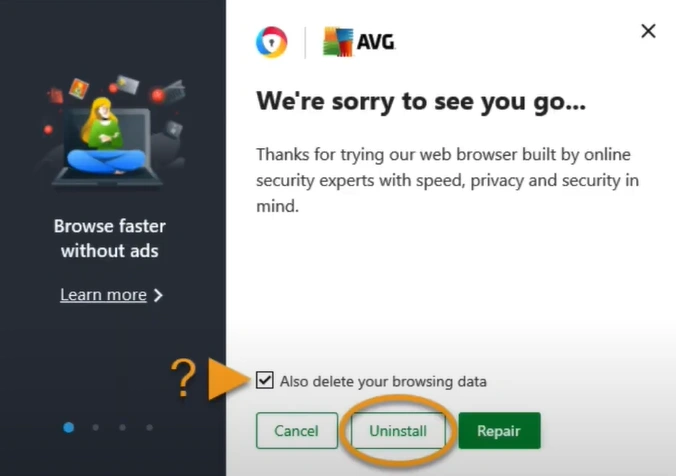
Step 11: Optionally, check the box next to 'Also delete your browsing data' and click 'Uninstall.'
Step 12: Wait for the uninstallation process to complete.
On Mac
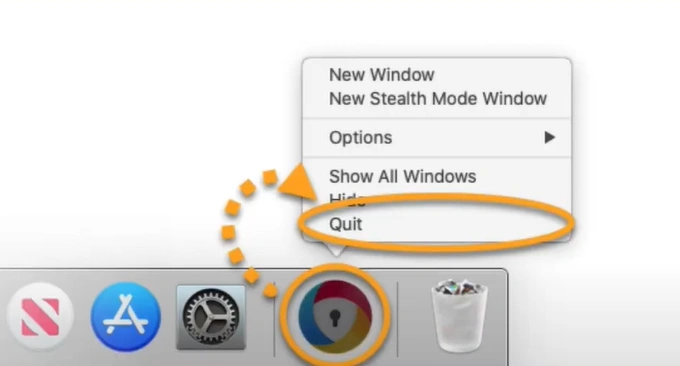
Step 1: If AVG Secure Browser is running, control-click the AVG icon on the dock and select Quit.
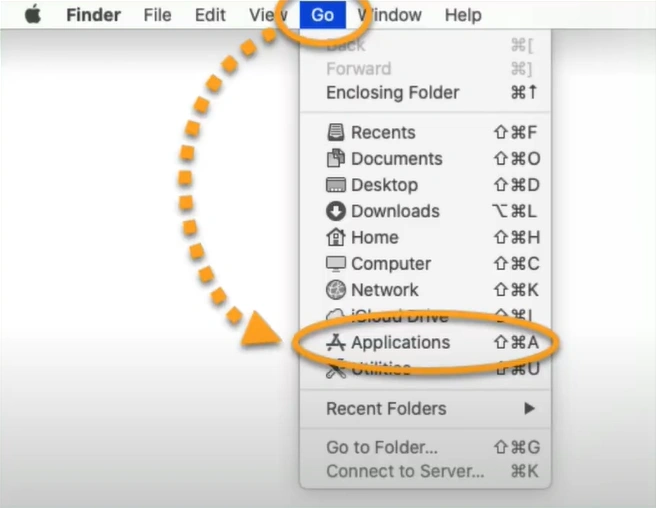
Step 2: Go to the Menu bar, click Go, and select Applications.
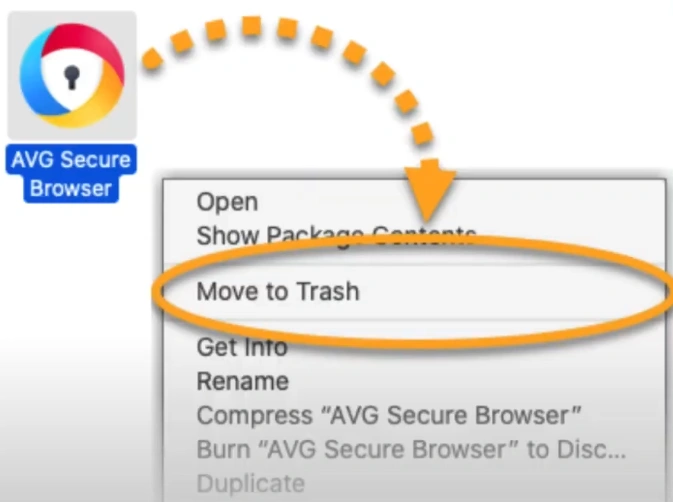
Step 3: Control-click the AVG Secure Browser icon and select Move to Trash.
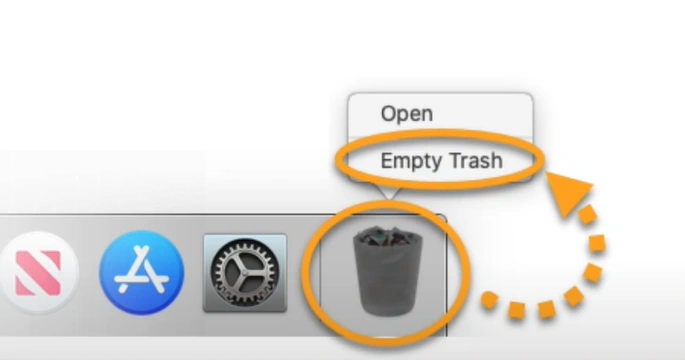
Step 4: Once done, control-click the Trash icon and select Empty Trash.
On Mobile Device
Step 1: From the home screen, navigate to the App Store or Google Play Store, depending on your device's operating system.

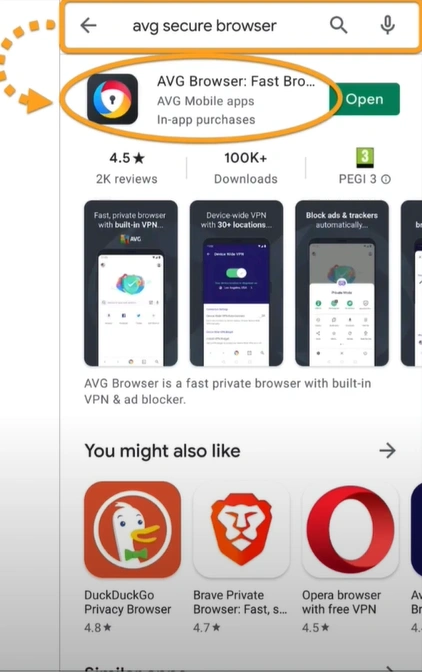
Step 2: In the search bar, type AVG Secure Browser and select it from the results.
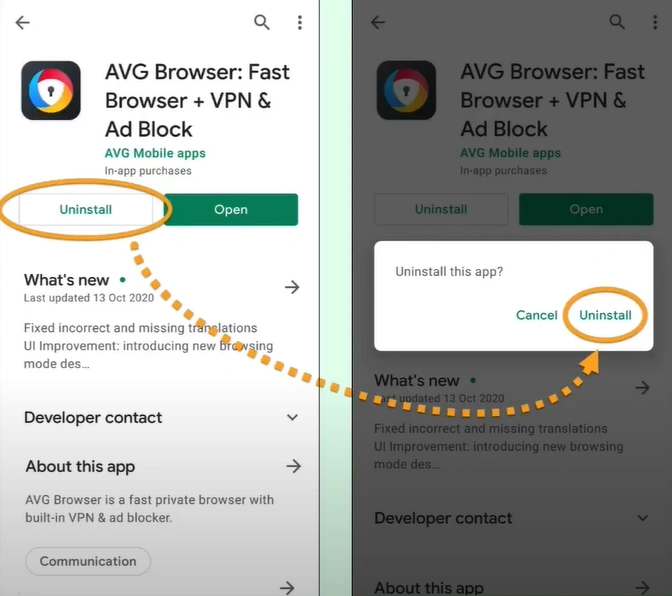
Step 3: Tap Uninstall, then tap Uninstall again in the prompt to proceed.
Summing Up
Whether you are using a Windows PC, a MacBook, or any mobile device, you can find the right solution to uninstall AVG Secure Browser. Just follow every instruction discussed, and you’ll be able to remove the browser that’s slowing down your system and triggering unwanted pop-ups.
Note: Some AVG files may remain even after uninstallation. Here’s how to remove them completely. After the uninstallation, go to C:\Program Files (x86)\AVG or C:\Program Files\AVG and manually delete the leftover folder. You can also utilize the AVG Clear tool, which is specially designed to remove all AVG files.

