
How to Turn Off the AVG Firewall?
AVG Firewall is designed to protect your computer by restricting unauthorized access. However, the firewall may sometimes misidentify safe programs as harmful, preventing them from running correctly. This misidentification can lead AVG Firewall to block essential programs, disrupting your daily tasks.
You might notice that certain applications, such as email services, project management tools, or video conferencing apps, become slow or fail to launch. This could indicate that AVG Firewall is interfering with their normal operation. It often happens when the firewall settings are set to “Strict” or when newly installed or updated software isn’t yet recognized by AVG. In such cases, you can temporarily turn off the firewall to allow the apps to function properly.

Before learning how to disable the AVG Firewall, it’s important to understand some of the potential issues that may occur during the process.
Potential Issues When Turning Off AVG Firewall
Turning off the AVG Firewall can temporarily help with troubleshooting network or software conflicts. But, while trying to disable the firewall, you might face many potential problems, such as:
-
Sensitive data leakage
-
You won’t receive alerts for suspicious activity
-
Spam and phishing attacks
-
Unauthorized access
3 Easy Ways to Turn Off AVG Firewall
Want to turn off your AVG Firewall but don't know how? Don't worry; simply follow these steps, and you can get the firewall turned off in minutes:
Turn Off Protection
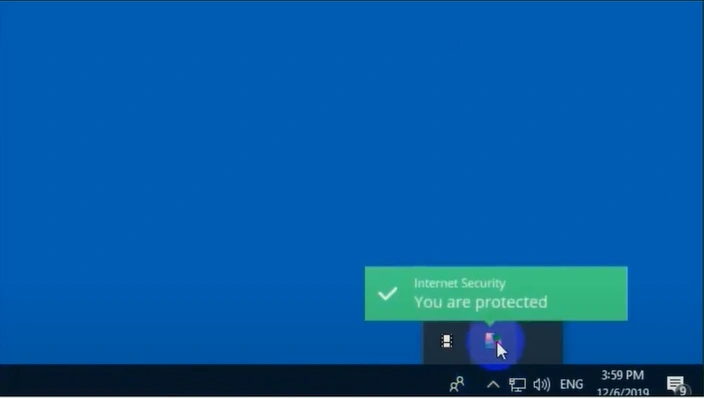
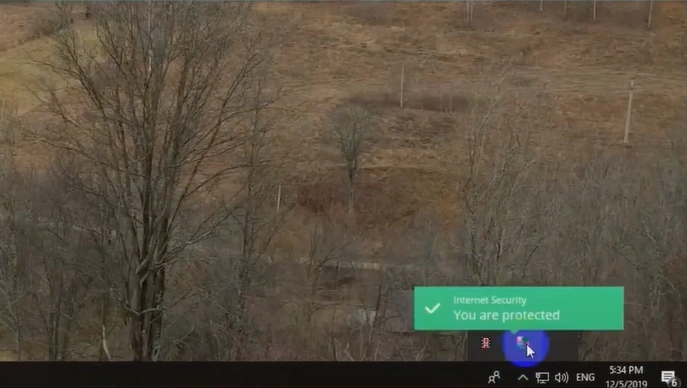
Step 1: Click on the expand arrow on the right side of the taskbar.
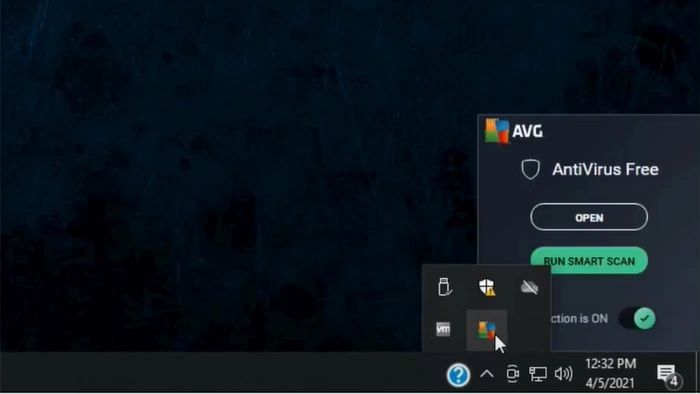
Step 2: Click on the AVG Antivirus icon.
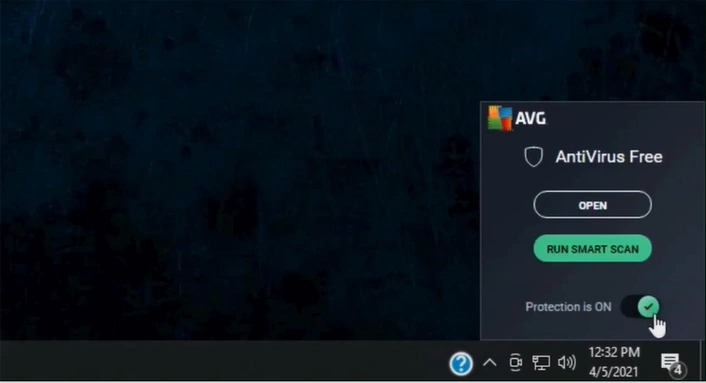
Step 3: In the AVG window, toggle off the “Protection” option at the top.
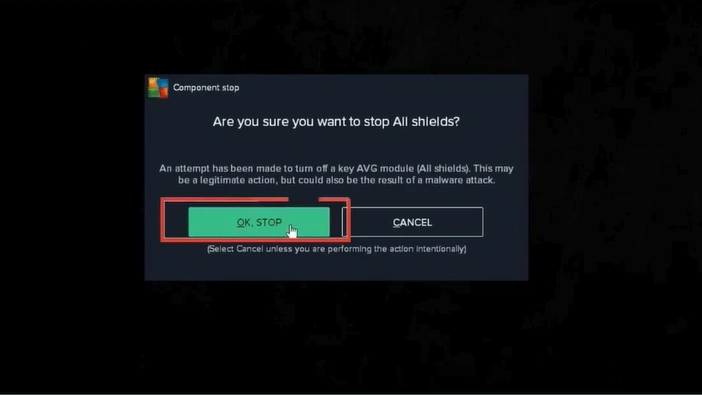
Step 4: Click on OK Stop to disable all shields.
Disable Firewall Options
Step 1: Launch your AVG Antivirus application.
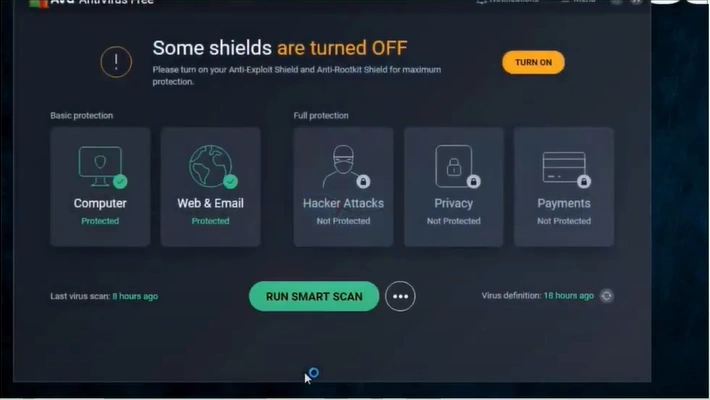
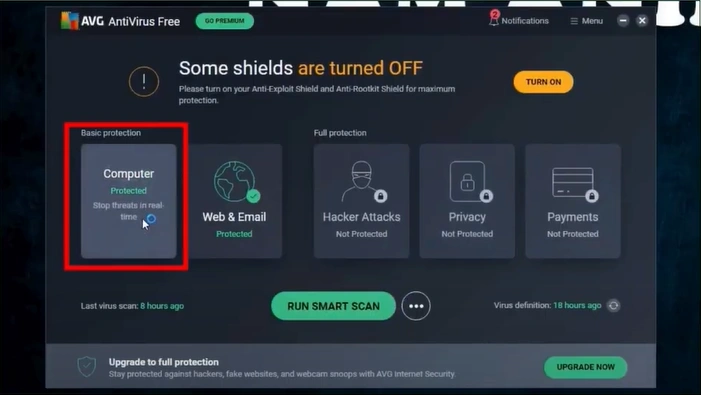
Step 2: Under Basic Protection, double-click on the Computer tile.
Step 3: Turn off the File Shield, select a period, and click the OK Stop button.
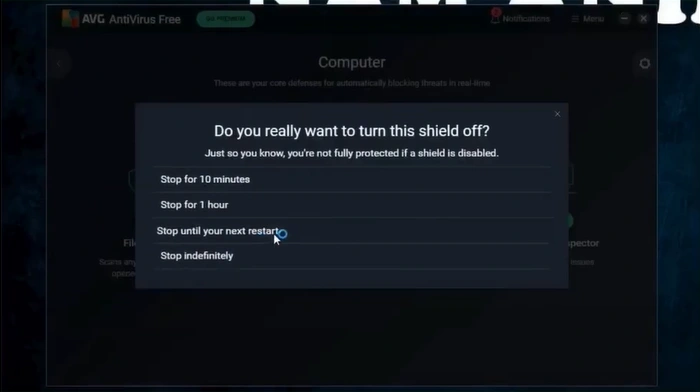
Step 4: Turn off the Behavior Shield, select a period, and click on the OK Stop button.
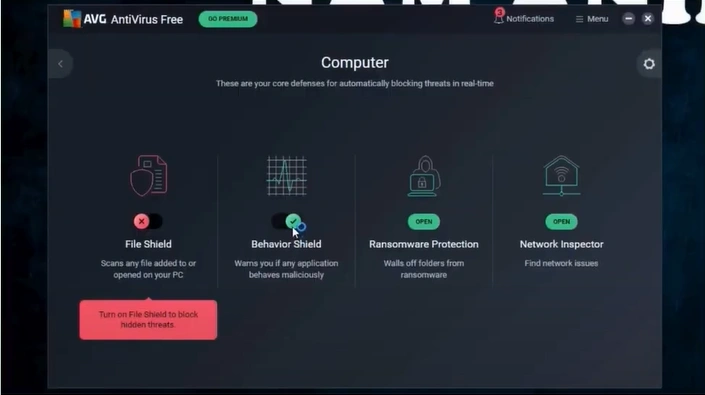
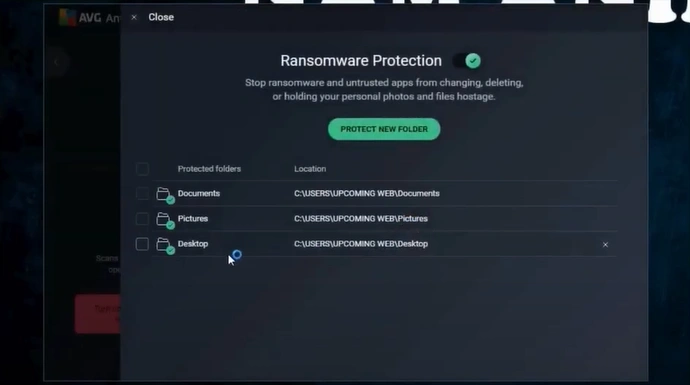
Step 5: Open Ransomware Protection, turn off the toggle, select a period, and click on the OK Stop button.
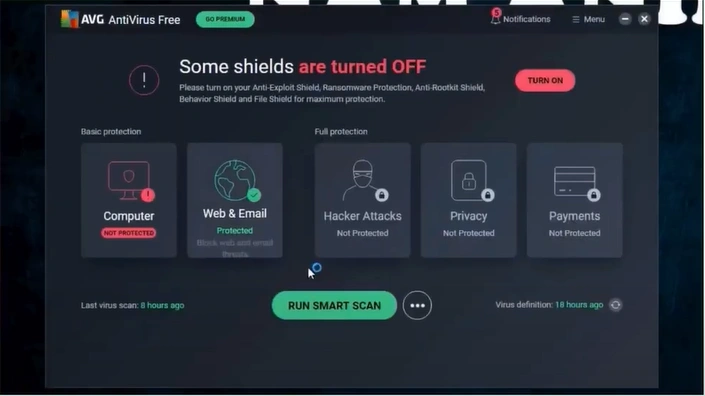
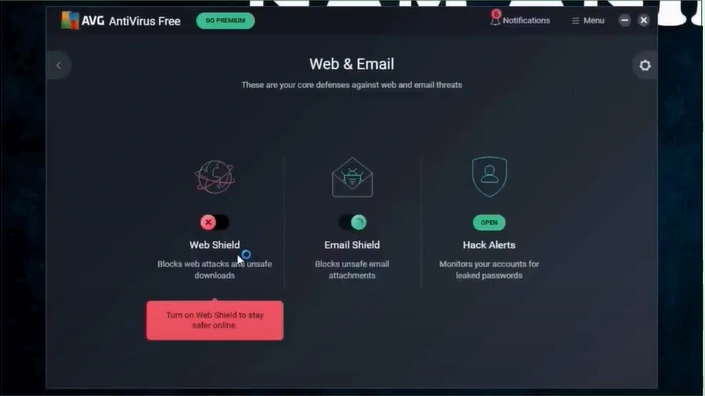
Step 6: Return to the main window and double-click the Web & Email tile.
Step 7: Turn off the Web Shield, select a period, and click the OK Stop button.
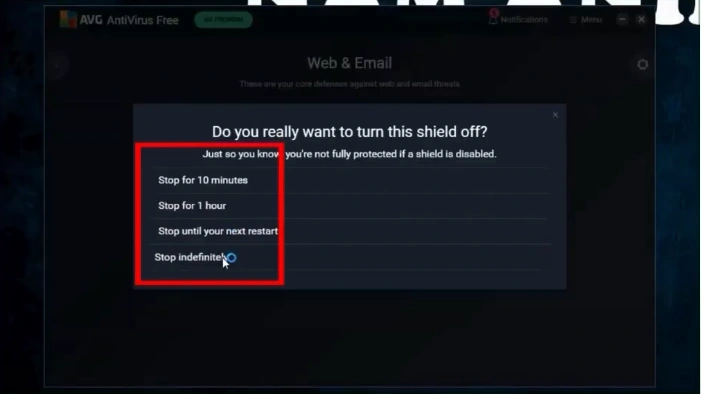
Step 8: Turn off the Email Shield, select a period, and click the OK Stop button.
Disable Enhanced Firewall
Step 1: Launch your AVG application.
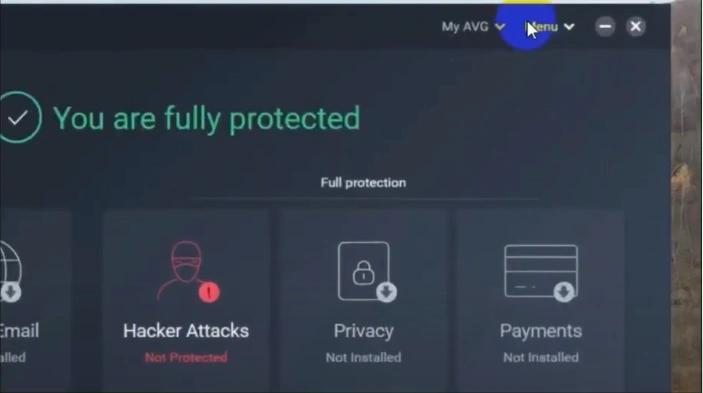
Step 2: Click and expand the Menu on the top-right.
Step 3: Open Settings.
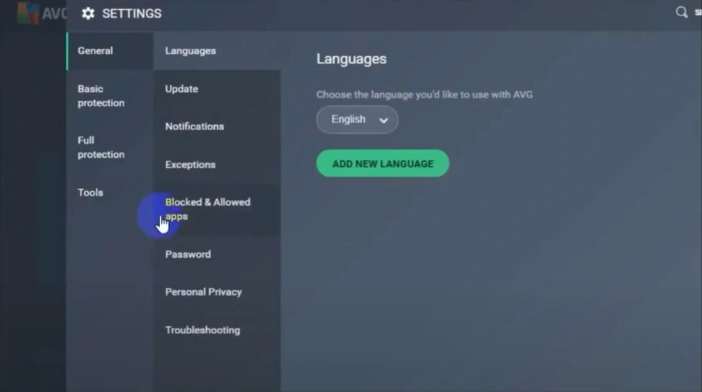
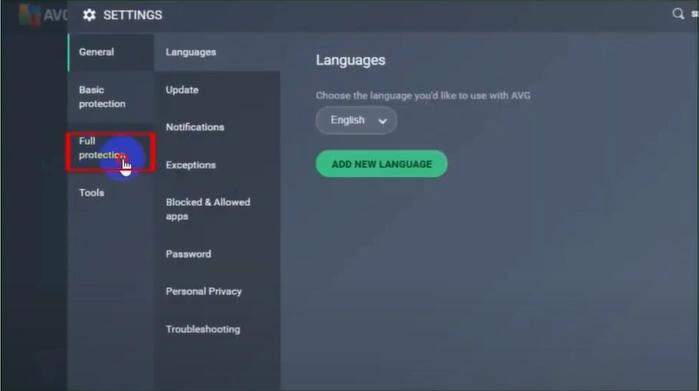
Step 4: Click on "Full Protection" in the sidebar and select "Enhanced Firewall."
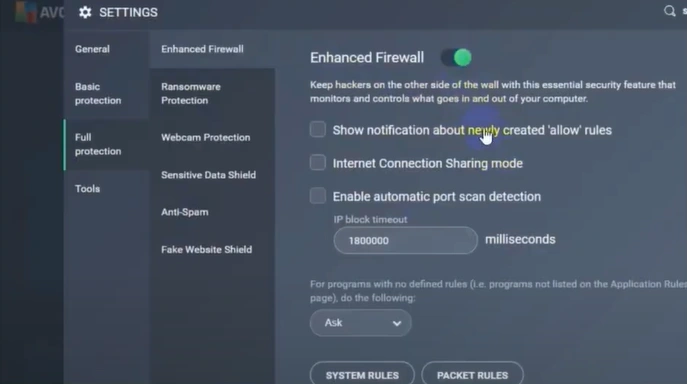
Step 5: In the Enhanced Firewall section, toggle the switch off.
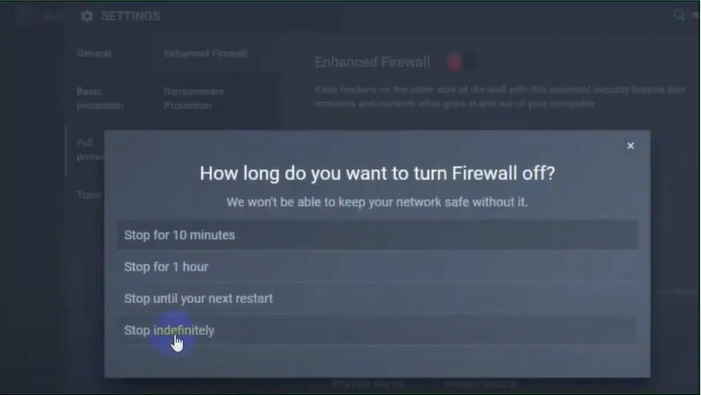
Step 6: Select the duration for which you want the protection to be disabled.
Also Read:- How to Cancel AVG Automatic Renewal
Summing Up
If certain programs or apps on your PC fail to open due to the AVG Firewall, it can become a serious issue. Don’t worry - these solutions are easy to follow and can help restore access to the blocked programs. The steps are simple, but be cautious while following each one, and make sure to address any potential issues that may arise along the way.

