
Resolve Norton 360 VPN Not Working Issue
Like any other weekday, I was working on my laptop on a new client’s project. This time, I was tasked with creating a product catalog layout for an online fashion store. As I launched Norton 360 to turn on the VPN, something unexpected happened. I always use Norton 360, especially when working on public design platforms like Figma, Canva, or Vectr.
However, that day, the VPN connection failed. I tried restarting the VPN, but it didn’t work. I became frustrated and concerned that my client’s sensitive data wasn’t getting the privacy protection Norton VPN usually provides.

I finally felt relieved when the Norton 360 VPN started working again. I applied a few practical fixes that restored both my antivirus and VPN security. Let’s look at how I resolved the Norton 360 VPN issue. But first, here are some common problems you might face during troubleshooting.
Common Issues While Fixing Norton 360 VPN Connection
Several issues may occur when attempting to resolve the “Norton 360 VPN not working” problem. These can be:
-
Outdated Norton Secure VPN version
-
Internet connectivity problems
-
Firewall settings conflicts
-
DNS server issues
Top 3 Methods to Fix Norton 360 VPN Not Working Issue
Check out these quick fixes that can help you resolve the “Norton 360 VPN not working” issue:
Method 1: Verify the Internet Connection
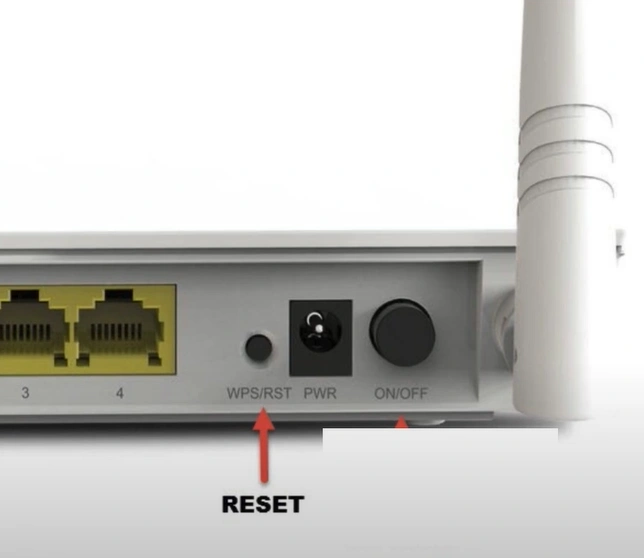
Step 1: Reset your router by pressing the reset button for 10 seconds while your Wi-Fi router is on.
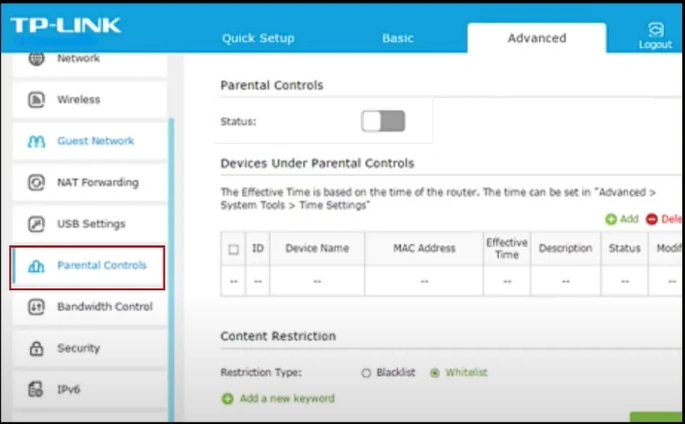
Step 2: Check if any parental controls or ISP restrictions are affecting your Wi-Fi.
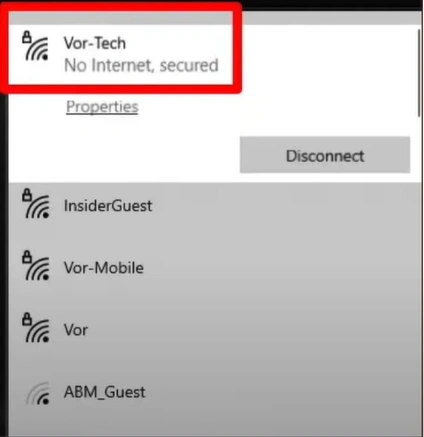
Step 3: Connect your Wi-Fi to another device to ensure it provides a stable connection.

Step 4: Connect your device to a different internet connection and verify if the VPN is working.
Method 2: Restart Your VPN Connection
Step 1: Launch your VPN application.

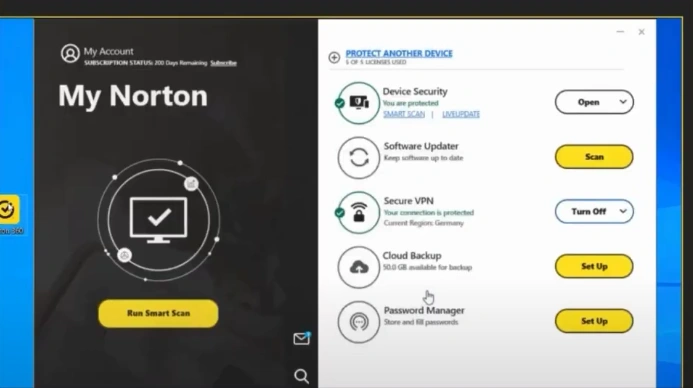
Step 2: Go to the secure VPN and turn it off.

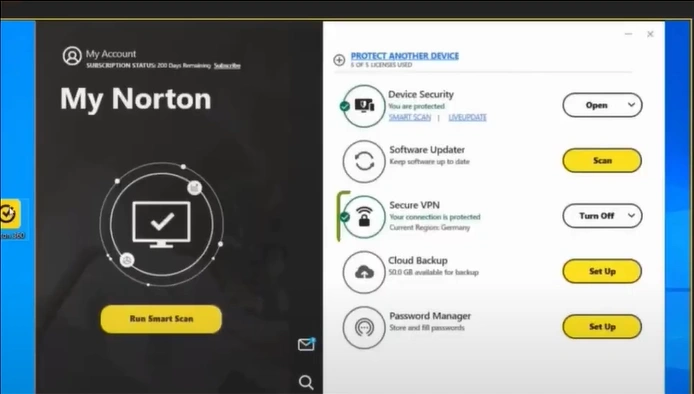
Step 3: Click the dropdown menu of the Secure VPN and select VPN Regions.
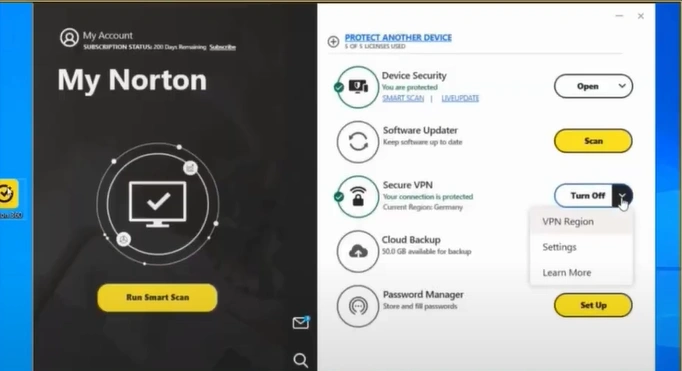
Step 4: Select the Country to reconnect to the VPN.
Method 3: Troubleshoot Internet Connections
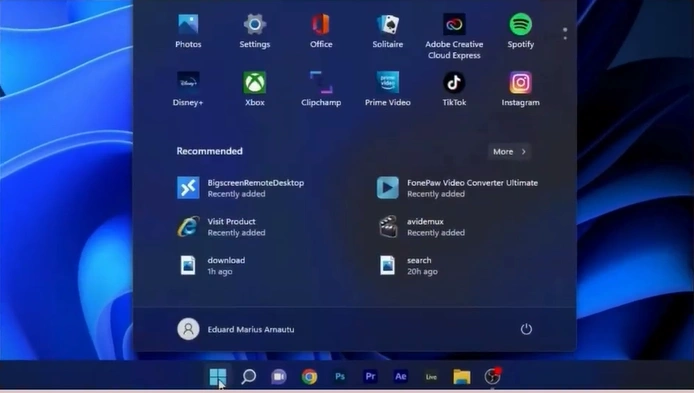
Step 1: Click the Start menu, then open Settings.
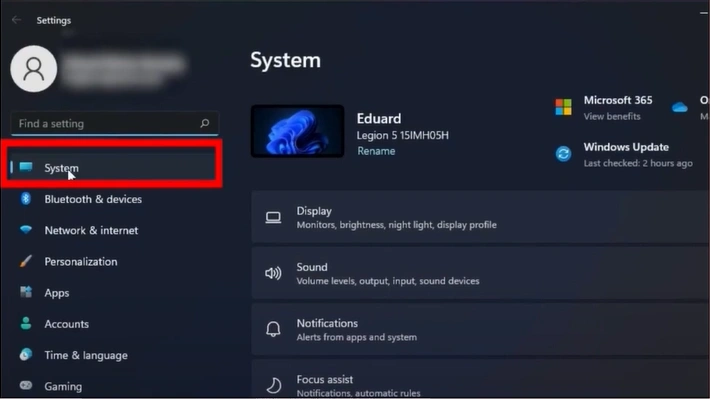
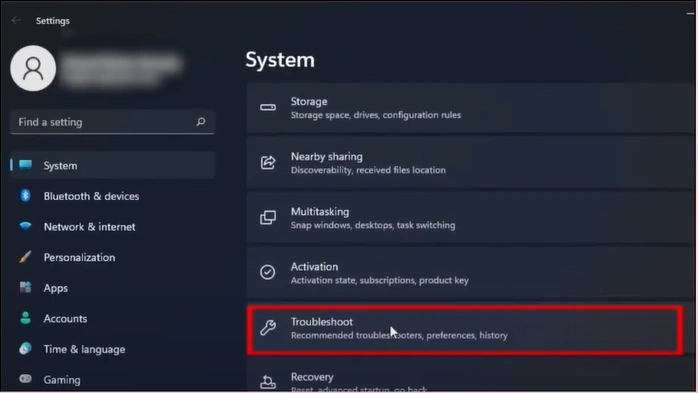
Step 2: Click on the System option from the left panel of the window.
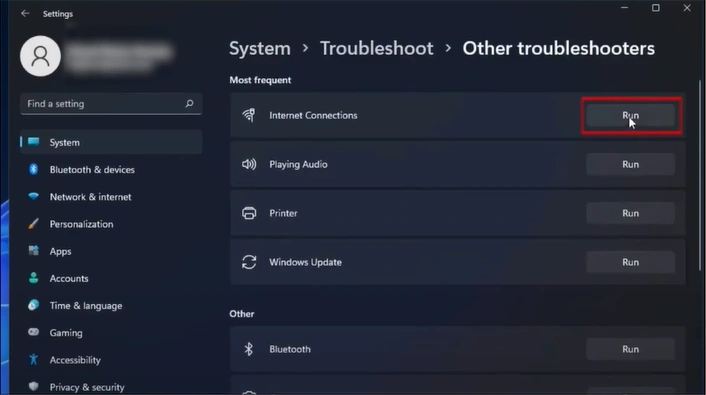
Step 3: Scroll and click on Troubleshoot, then click on Other Troubleshooters.
Step 4: Find the Internet Connection option and click the Run button next to it.
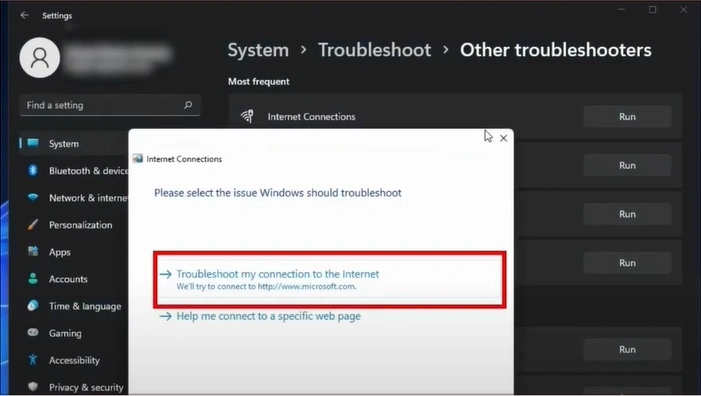
Step 5: Select the "Troubleshoot my connection to the Internet" option, and let Windows detect and fix the issues.
Also Read:- How to Turn Off Background Tasks in Norton 360?
Summing Up
These are the top 3 solutions to fix the Norton 360 VPN not working issue. Follow the instructions we have discussed, and you should be able to resolve the trouble without any problems.
Potential issues such as an outdated VPN version, network problems, or firewall conflicts may arise. Identify and address them properly to ensure smooth troubleshooting.

