How to Troubleshoot Can't Install Trend Micro Antivirus Issue?
In recent years, viruses have evolved rapidly. To confidently protect your desktop computers and smartphones, Trend Micro is a globally well-known IT security software company that has emerged as a prominent competitor among other antivirus software brands.
Trend Micro, like any human-made program, can encounter errors while running on electronic devices. Common issues range from slow processing to installation and startup errors. In this blog, you will find 5 different solutions for resolving the can't install Trend Micro antivirus issue.

Solution 1: Update Your Computer
With an aim to get Trend Micro software into their PCs, all the users must update their device operating system. Now, to complete the update process, they've to go through the steps given below:
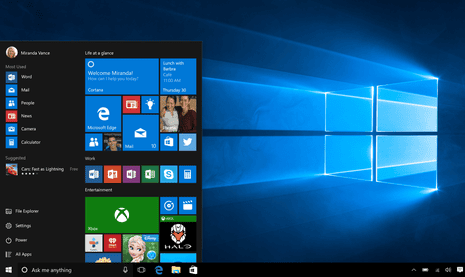
- Kick off the method by tapping the Start menu and tick the Settings option.
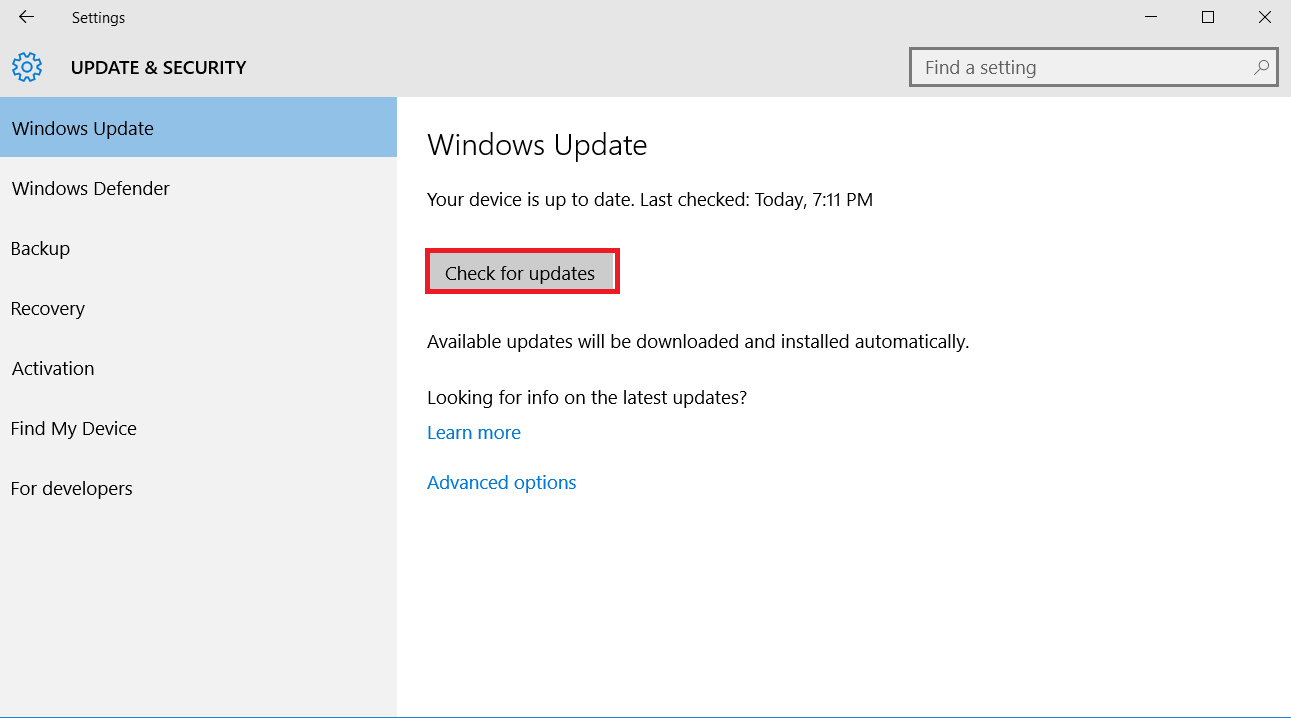
- Now, press the Update & Security > Check for updates option.
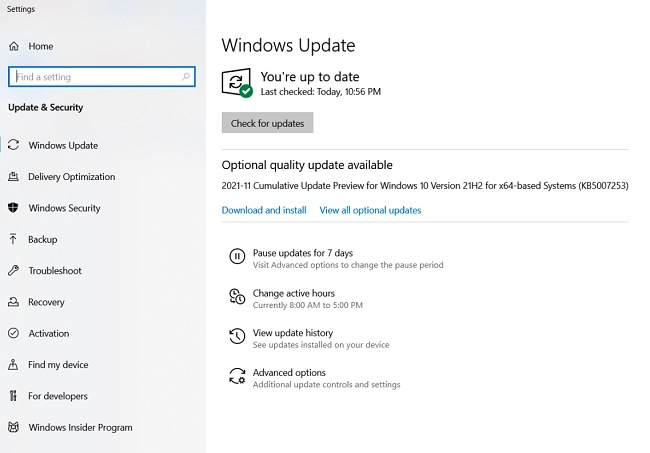
- Next, you'll see the software update notification (if any) on the screen.
- Afterward, press the Download and Install Now option to begin the update process.
- Finally, try to install the antivirus software on your device to see if it still shows any issues.
Besides, you can also get the can't install Trend Micro solution by checking your PC system requirements.
Solution 2: Check Your PC System Requirements
By considering the following steps, the user can quickly check their Windows/Mac system requirements.
- You need to check that you are using the device with Windows 7 or higher.
- Your device must've at least 2 GB RAM with a free disk space of 2 GB.
- Cross-check that you've good internet speed and a reliable web browser.
On the contrary, one more solution that will help you in finding solutions for the Trend Micro install issue is restarting your PC.
Solution 3: Restart Your PC in Safe Mode
Restarting the system in safe mode will help the users in solving the can't install Trend Micro issue. Hence, the coming steps will help you finish the solution within minutes without any issues:

- Start the process by pressing the Start + I buttons together on your keyboard.
- Now, go to the Settings page and tick the System option.
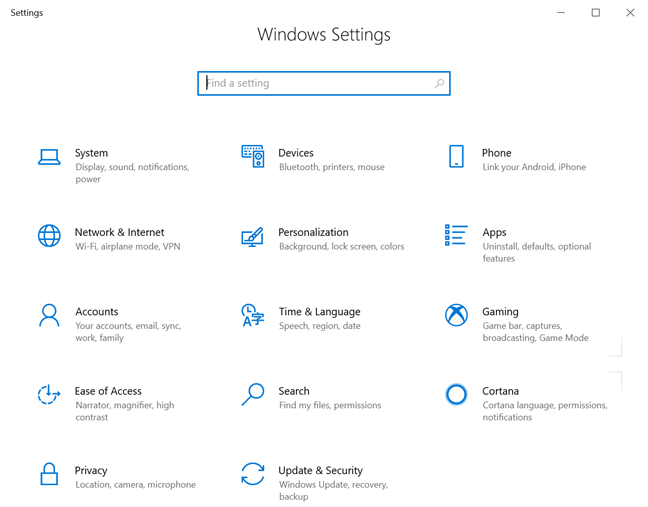
- Next, tap the Recovery option and then the Restart Now option.
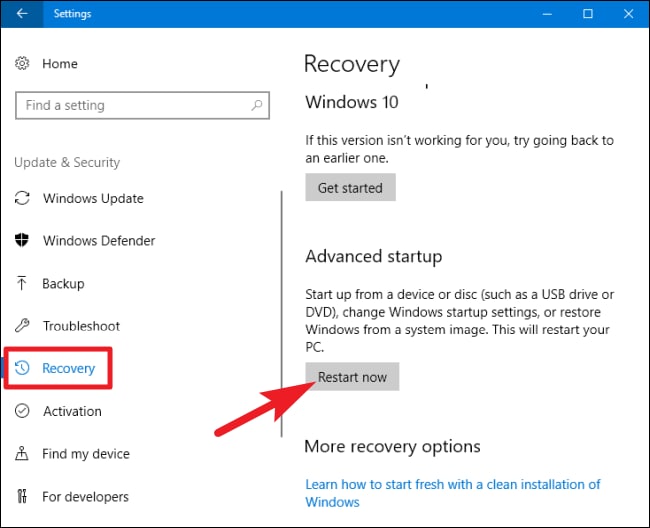
- After opening your device safe mode, give it a shot by installing Trend Micro on your device.
- Last but not least, if you still come across the same error, then try other methods.
Solution 4: Check the Internet Connection
A rocky internet connection is one of the common reasons for can't install Trend Micro issue. So, checking the internet connectivity is a very crucial part. With the help of these steps, you can quickly check the internet connection status:
- First, close all the programs except Trend Micro software.
- Next, start removing all the devices connected to your router.
- Now, use a cable connection instead of a wireless connection.
- Following this, disconnect your router for a few minutes and let the connection reset.
- Lastly, turn on your system & router to check whether your system internet has come into action or not.
Solution 5: Cleanup System (Manually)
Not least of all, there are times when your device's junk files block the Trend Micro program from working on your system. Now, pursue these steps to clean the system from the unwelcome files:
- Kick off the method by boosting up the system into safe mode.
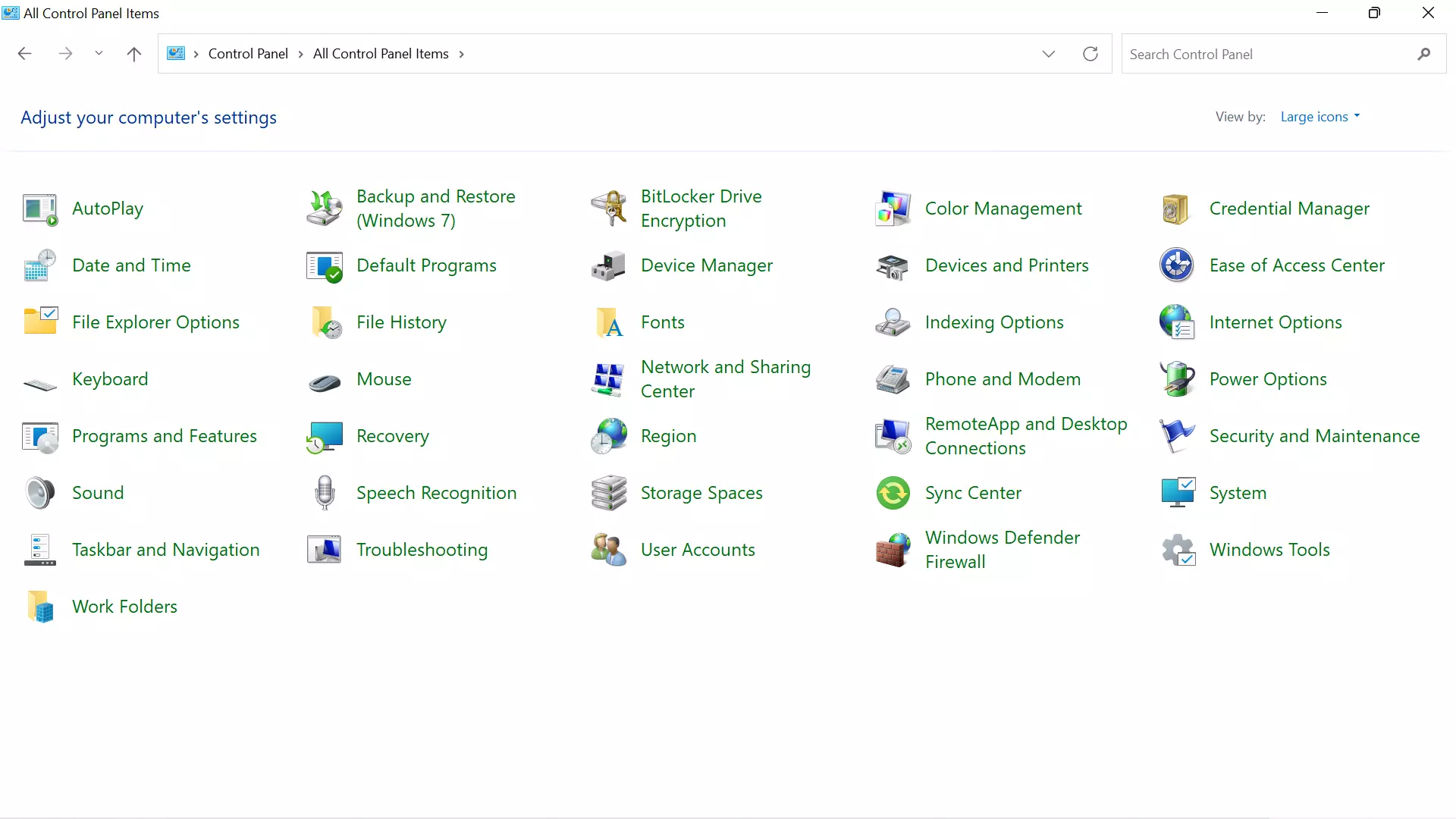
- Next, open the Control Panel and tick the File Explorer Options option.
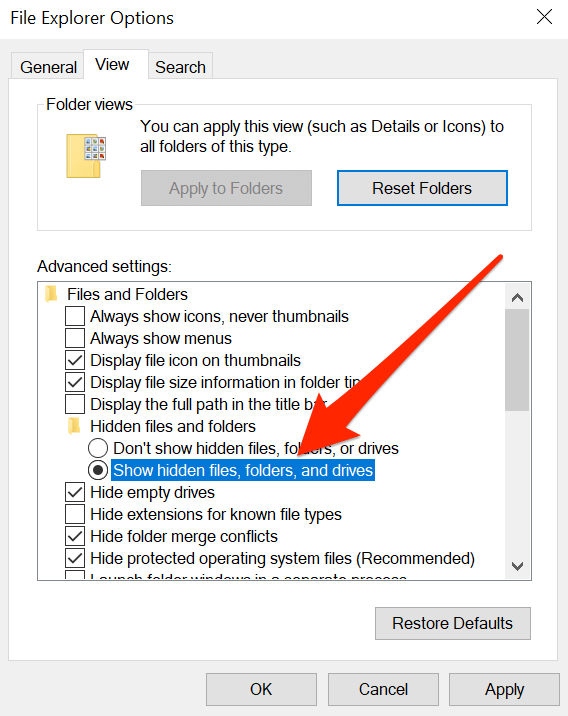
- Afterward, press View > Show Hidden files, folders, and drivers.
- Now, tick the OK box given on the left side of the small pop-up window.
- Following this, start removing all the Trend Micro files and restore view settings to default.
- Further, restart your computer system and try to install Trend Micro software on your system.
Equally important, one thing has become that the users have plenty of methods to solve the can't install Trend Micro error. Also, it can be estimated that they will be choosing the correct method till the problem comes to an end. Apart from that, you can also refer to the FAQs given below.
Frequently Asked Questions
Answer: Take the help of the following steps to solve the Trend Micro installation issue on your PC:
- Close all the running programs except Trend Micro
software.
- Now, remove the devices which are connected to your
router.
- Take the cable connection and try to connect it to
the router.
- Next, detach your router and try to reset the
connection for a few minutes.
- After a few minutes, switch on your PC and router to
check whether the issue has come to an end or not.
Answer: Some of the common reasons that lead to Trend Micro's failure installation into the system are as follows:
● The Trend Micro isn't compatible with your
Windows/Mac operating system.
● You are still using the previous version of
your PC operating system.
● There are some technical glitches in your
computer system.
● Your Windows/Mac has been attacked by malware
or viruses affecting your system work.
Answer: There are several reasons why you aren't able to install Trend Micro antivirus on your PC. Some of the vital pointers that you should consider before reinstalling the software are as follows:
● Your Windows OS doesn't support the antivirus software system requirements.
● You might not have Administrative privileges, have unstable internet connections, or download corrupt files of Trend Micro software.
● Another pointer that can be the reason is that you've installed another antivirus software on your device.

