Antivirus Tales
  • Home
  • Contact Us
  • Knowledge base
  • Support
  • All Antivirus
  • Home
  • Contact Us
  • Knowledge base
  • Support
  • All Antivirus

Step 1

20%

Q1: Kindly choose your brand name.

Step 2

40%

Q2: Kindly choose your device.

Step 3

60%

Q3: Kindly fill your contact details.

Step 4

80%

Q4: Kindly fill your contact details.

Facing trouble with your Antivirus ? - Fix Now
Disable the Kaspersky Keyboard
  • Jan 23, 2025
  •  | 
  • By Mathew Jones
  •  | 
  •  | 
  • Views: 1683

How to Disable the Kaspersky Keyboard

You may need to disable the Kaspersky Secure keyboard to resolve functionality problems. You may also find the Kaspersky Keyboard pop-up intrusive and disruptive. This could disrupt your workflow and prompt you to turn off this feature.

There can be usability problems as the Kaspersky Keyboard may not work properly with specific types of data entry fields or browsers. This could result in the need to disable the keyboard. Certain features like AutoComplete in Microsoft Internet Explorer may not work with Kaspersky Secure Keyboard. This inconvenience may require users to disable the Kaspersky Keyboard. Live chat with experts

Here is a complete guide on how to disable Kaspersky Keyboard. Read further to learn in detail.

Potential Issues When Disabling the Kaspersky Keyboard

You may face the following issues when attempting to disable Kaspersky Keyboard:

  • System instability

  • Interference with other security software

  • Technical support limitations

  • Error messages

Steps to Disable Kaspersky Secure Keyboard

Disabling the Kaspersky Keyboard is a straightforward process. Here are the essential steps you should know:

On Mac

Step 1: Open the Kaspersky antivirus program and click Open Protection Center.

Open the Kaspersky antivirus application


Step 2: Locate Safe Money is Enabled and click Preferences.

Click the Settings icon


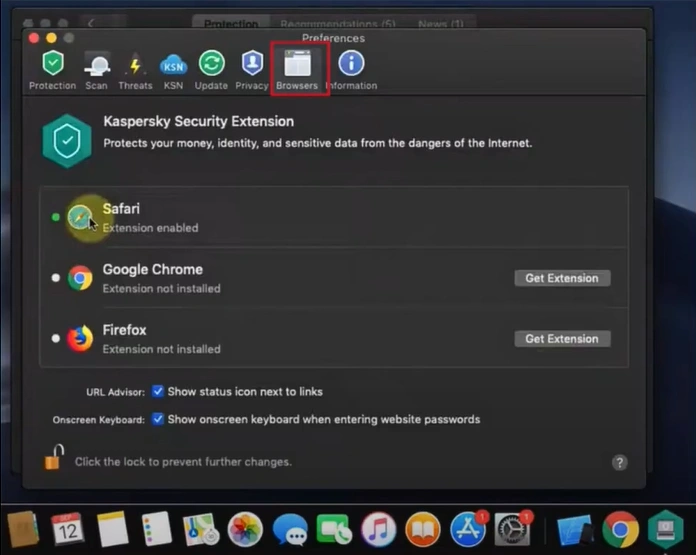
Step 3: Go to the Browsers tab.

Select Additional in the left menu


Step 4: Locate the Onscreen Keyboard section and uncheck the Show Onscreen Keyboard When Entering Website Passwords box.

Locate the Onscreen Keyboard


Step 5: Click the lock icon on the bottom to make the changes.

Click the lock icon on the bottom


On Windows

Step 1: Open the Kaspersky antivirus application. Live chat with experts

Open the Kaspersky antivirus application


Step 2: Click the Settings icon on the bottom left side of the screen.

Click the Settings icon on the bottom


Step 3: Select Additional in the left menu.

Select Additional in the left menu


Step 4: Click Secure Data Input from the right menu.

Click Secure Data Input from the right menu

Also Read:- How to Remove Credit Card From Kaspersky?

Step 5: In the Onscreen Keyboard section, uncheck the options.

Onscreen Keyboard section


Step 6: Next, uncheck Enable Secure Keyboard Input option under Secure Keyboard Input.
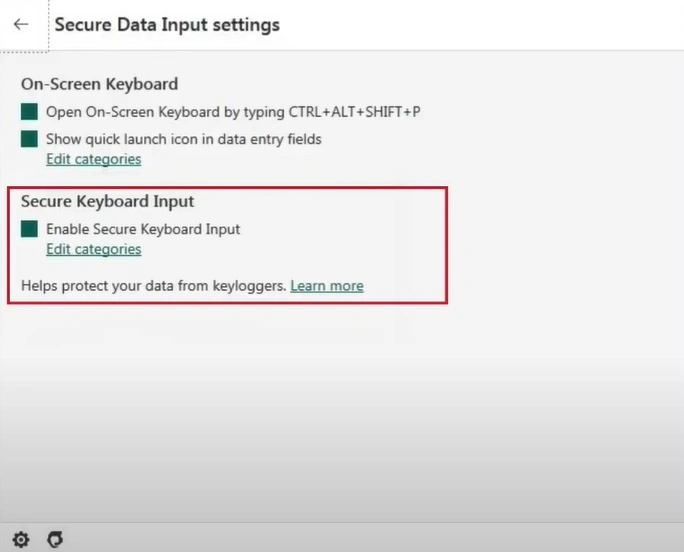
uncheck Enable Secure Keyboard


Step 7: Once done, close the antivirus program.
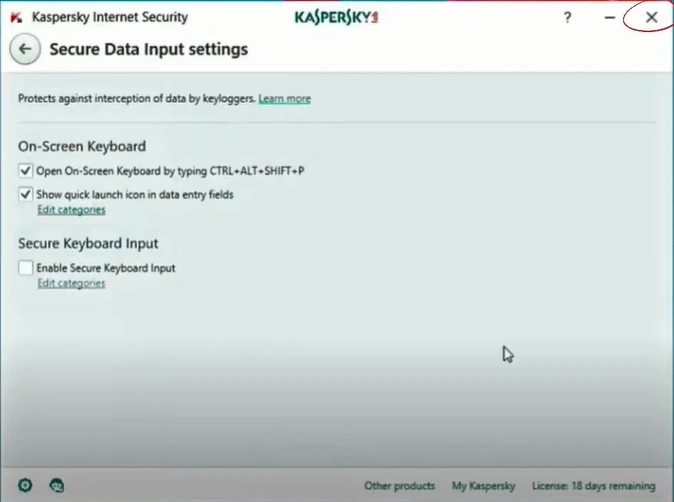
close the antivirus program

Closure

That’s all we want to tell you in this guide about the steps to disable the Kaspersky Secure Keyboard. Ensure a smoother browsing experience and avoid interruptions.

Potential risks, such as interference with other security software, system instability, and error messages, may occur when disabling the Kaspersky Keyboard. With the right knowledge, you can address these issues and ensure a secure experience.

You can contact an expert if you need any assistance disabling the Kaspersky Secure Keyboard.

 

Was this article helpful?
Antivirus Support
Tags: disable kaspersky keyboard how to disable kaspersky keyboard disable kaspersky secure keyboard
  • Share
Prev
How to Turn Off Secure Search McAfee?
Next
How to Uninstall/Remove ESET Antivirus Windows 11/10?

free consultation

Table of Contents

  • Potential Issues When Disabling the Kaspersky Keyboard
  • Steps to Disable Kaspersky Secure Keyboard
  • Closure

Recent Post

About McAfee Corp

Learn All About McAfee Corp. [A Cybersecurity Company]

Feb 23, 2023
Kaspersky

Things You Need to Learn About Kaspersky Before Choosing It!

Feb 23, 2023
About AVG Technologies

All You Need to Know About AVG Technologies

Feb 23, 2023
Important Facts to Know About Norton

Important Facts to Know About Norton

Mar 27, 2023
Know About the Bitdefender Company

Everything You Need to Know About the Bitdefender

Mar 28, 2023
Antivirus Tales

An independent troubleshooting resource for antivirus software errors. Guides here cover installation failures, update issues, scan errors, product key problems, and more - across all major antivirus programs.

Not affiliated with any antivirus company.

Company

  • Home
  • Knowledge Base
  • Support
  • Contact Us

Issues We Resolve

  • Learn All About McAfee Corp. [A Cybersecurity Company]
  • Things You Need to Learn About Kaspersky Before Choosing It!
  • All You Need to Know About AVG Technologies
  • Important Facts to Know About Norton
  • Everything You Need to Know About the Bitdefender
  • Everything You Should Know About the Sophos

Contact Info

  • Email info@antivirustales.com
  • Contact US +1-857-557-6826
    UK +44-161-791-4591
  • Address 698 NE 1st Ave, Miami FL 33132

Copyright © 2026 by Antivirustales.com All rights reserved.

  • Terms Of Use
  • Disclaimer
  • Privacy Policy
image-not-found
1
2
3
4
5

Step 1

Let's start 😀

Which operating system do you use ?

Step 2

Step 2 to 5

Let us know the device you are facing this error/issue on:

Step 3

step 3 to 5

Let us know, since how long have you been facing this error/issue

Step 4

step 4 to 5

Kindly enter your name and email

Step 5

Last step 🏆

Let us schedule a call for you

Step 5

Completed 100% 🏆

Thankyou for contacting us

Our subject matter expert will contact you on the provided number, kindly answer all the calls.

Chat Support
🍪 We are using Cookies! For more information visit this page  Cookie policy.